Your analytics,
where editors work

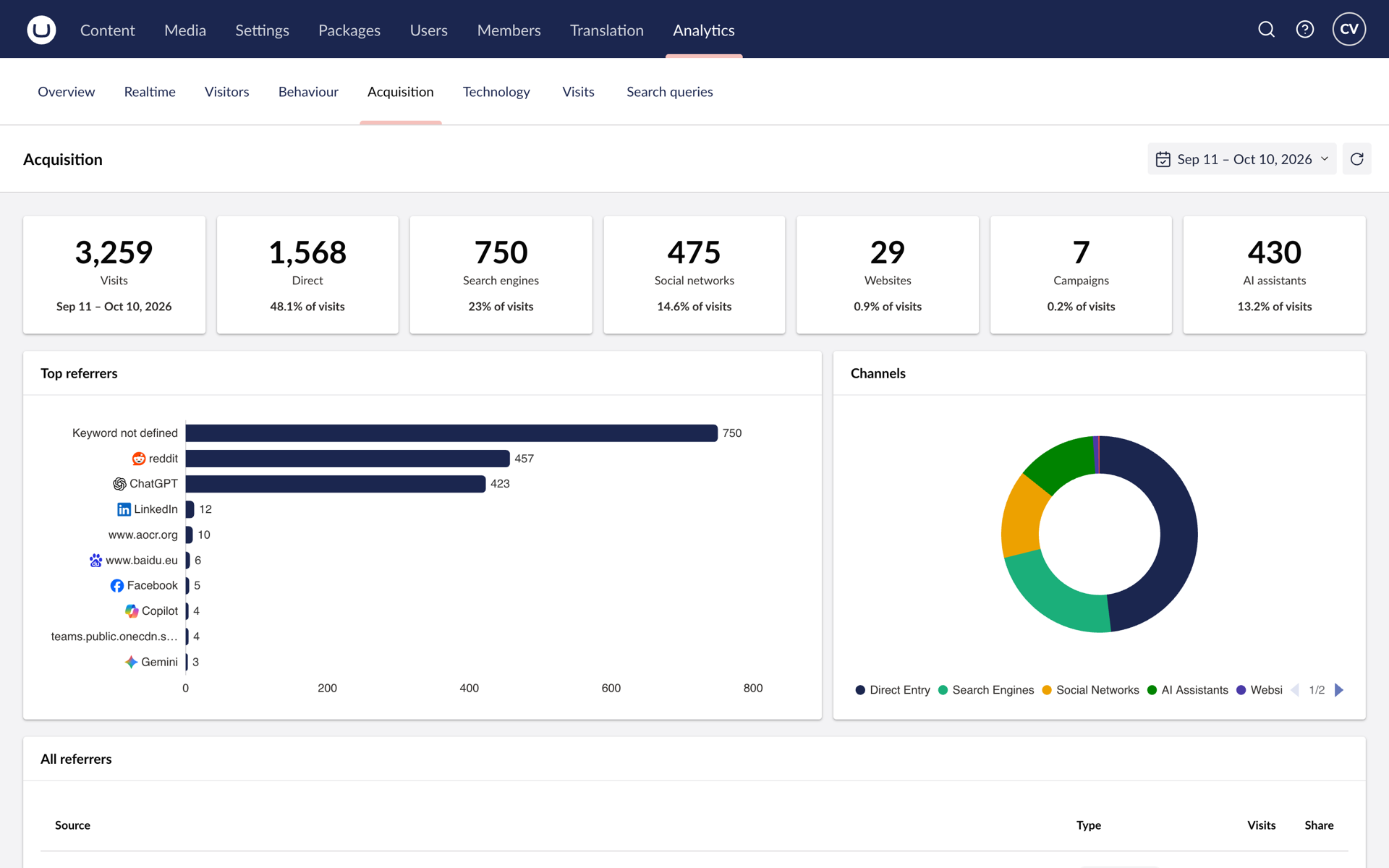
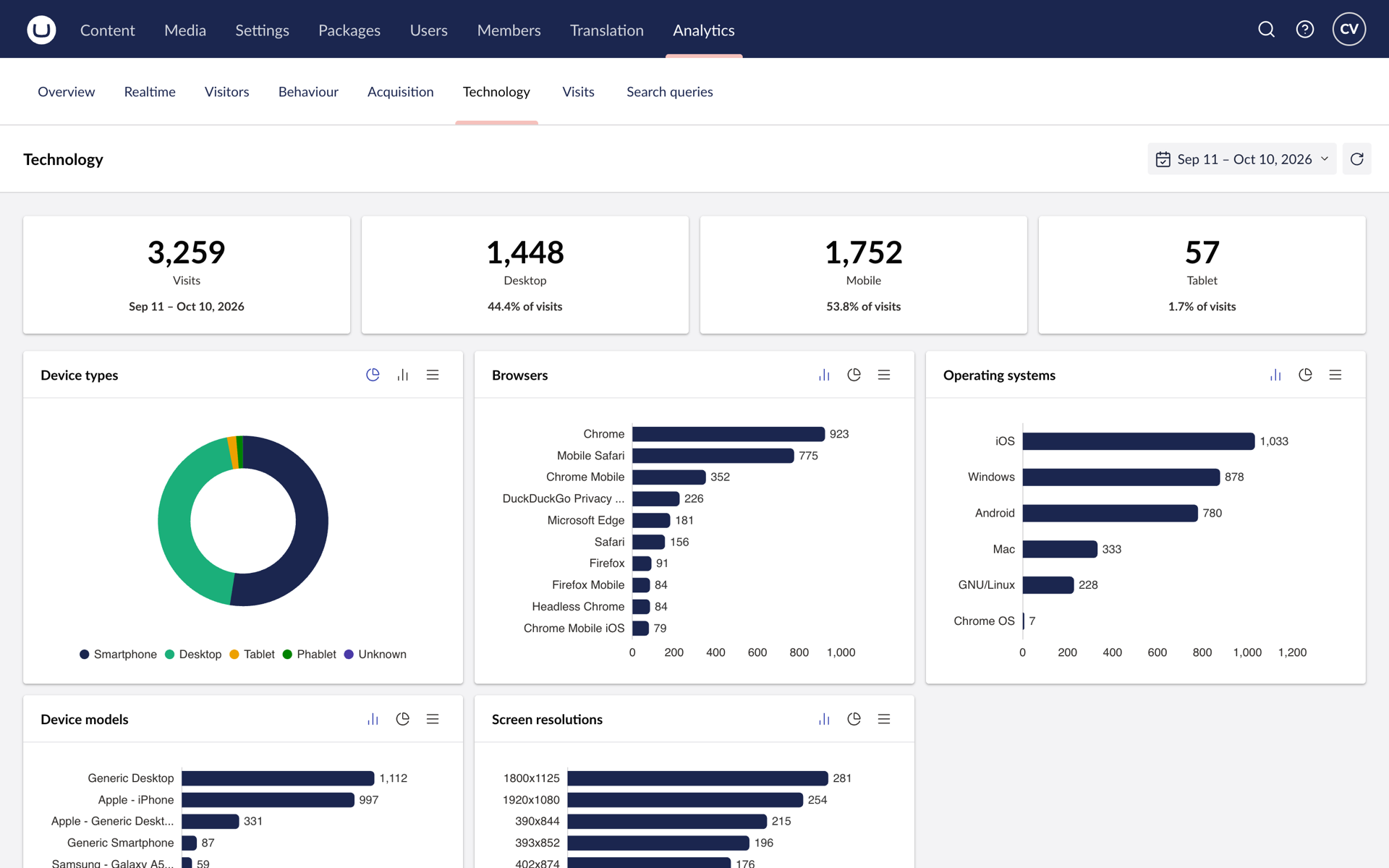
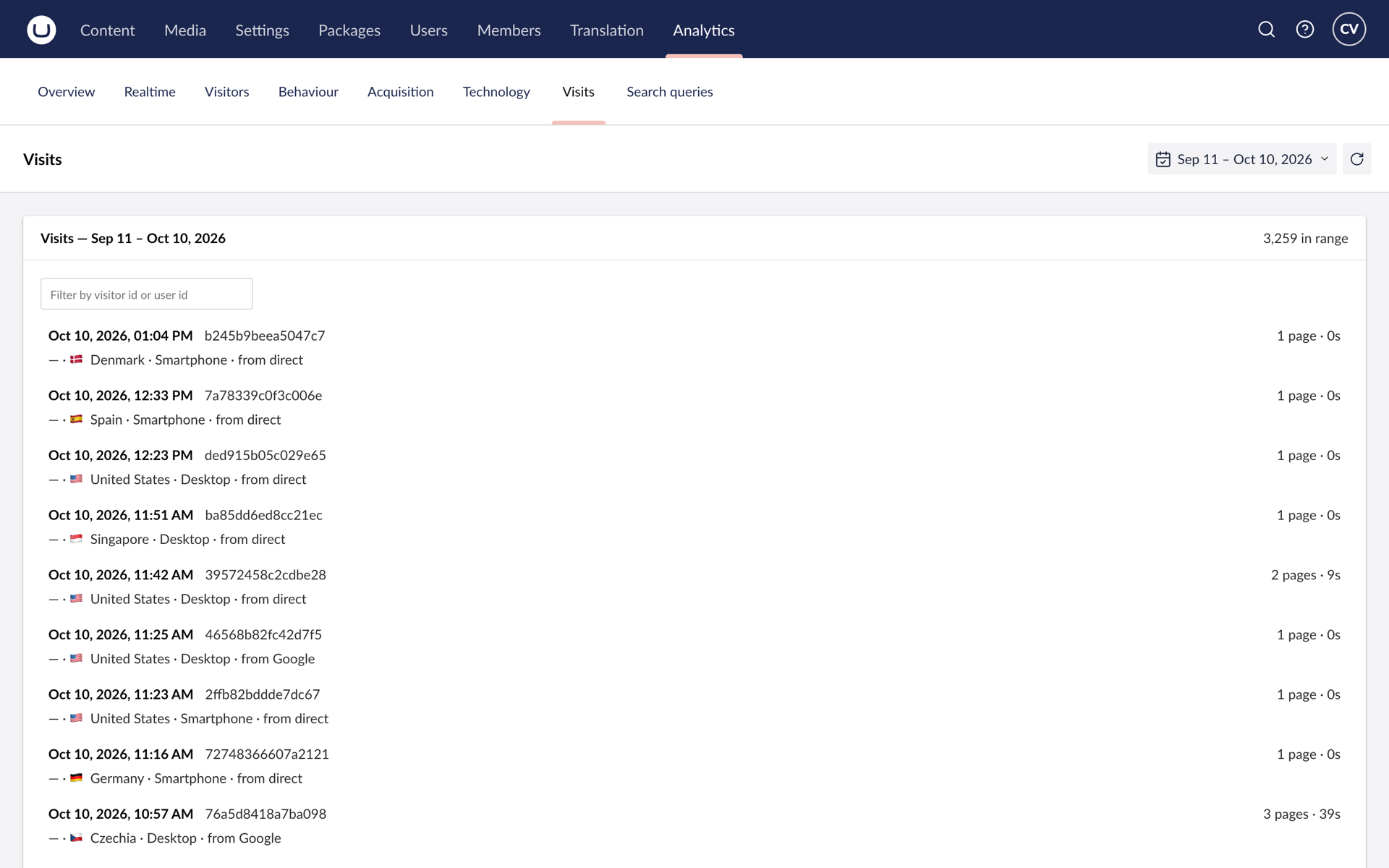
Realtime, visitors, behaviour, acquisition and technology - read live from your own Matomo, self-hosted or cloud, and shown inside the Umbraco backoffice. Every document gets an Analytics tab with its own traffic, referrers and journeys.
Free for Umbraco 17 and later, with no data limit. Analytics Pro adds AI Visibility and more. Nothing about your visitors is stored in Umbraco.
Six dashboards
and a tab on every page
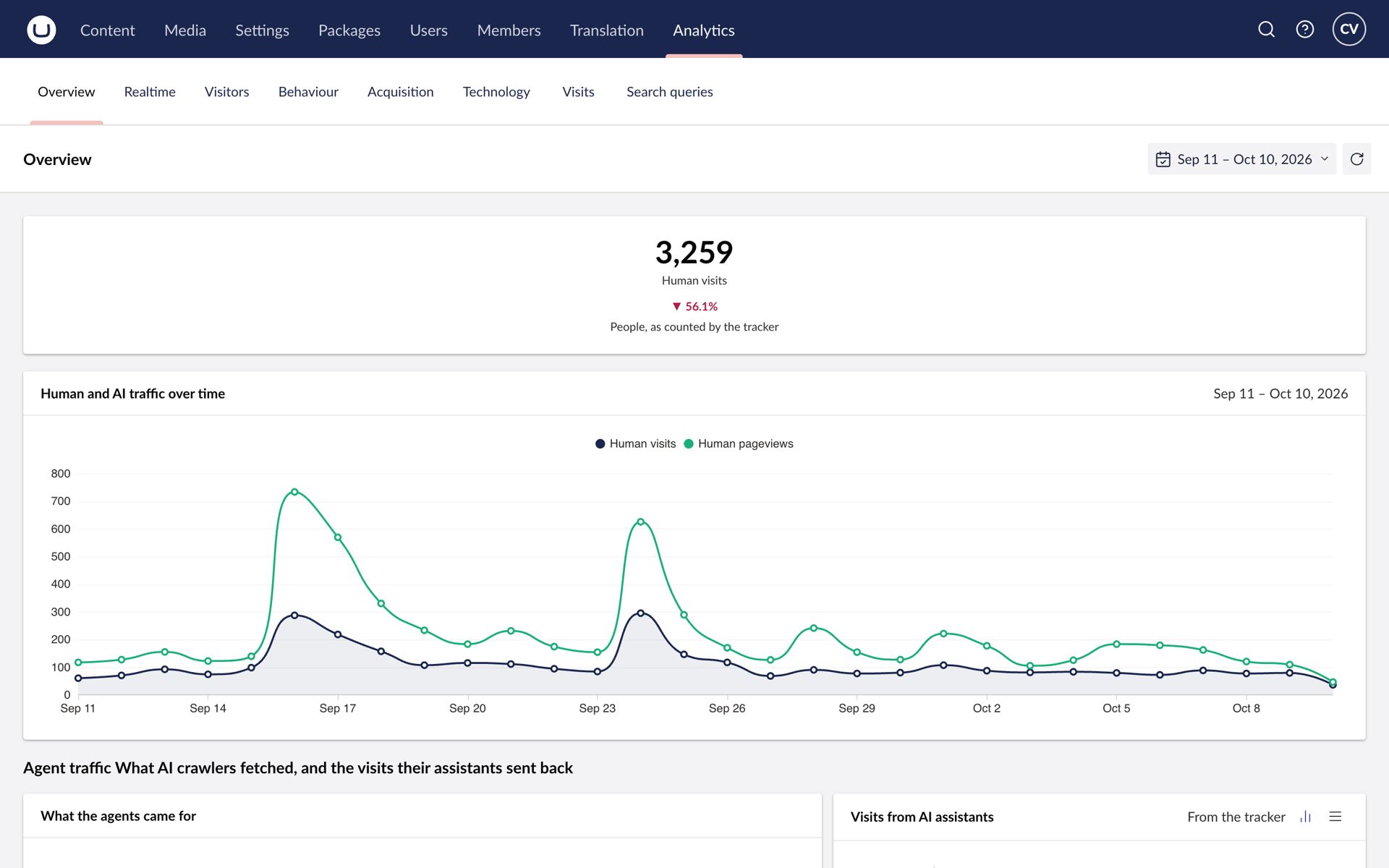
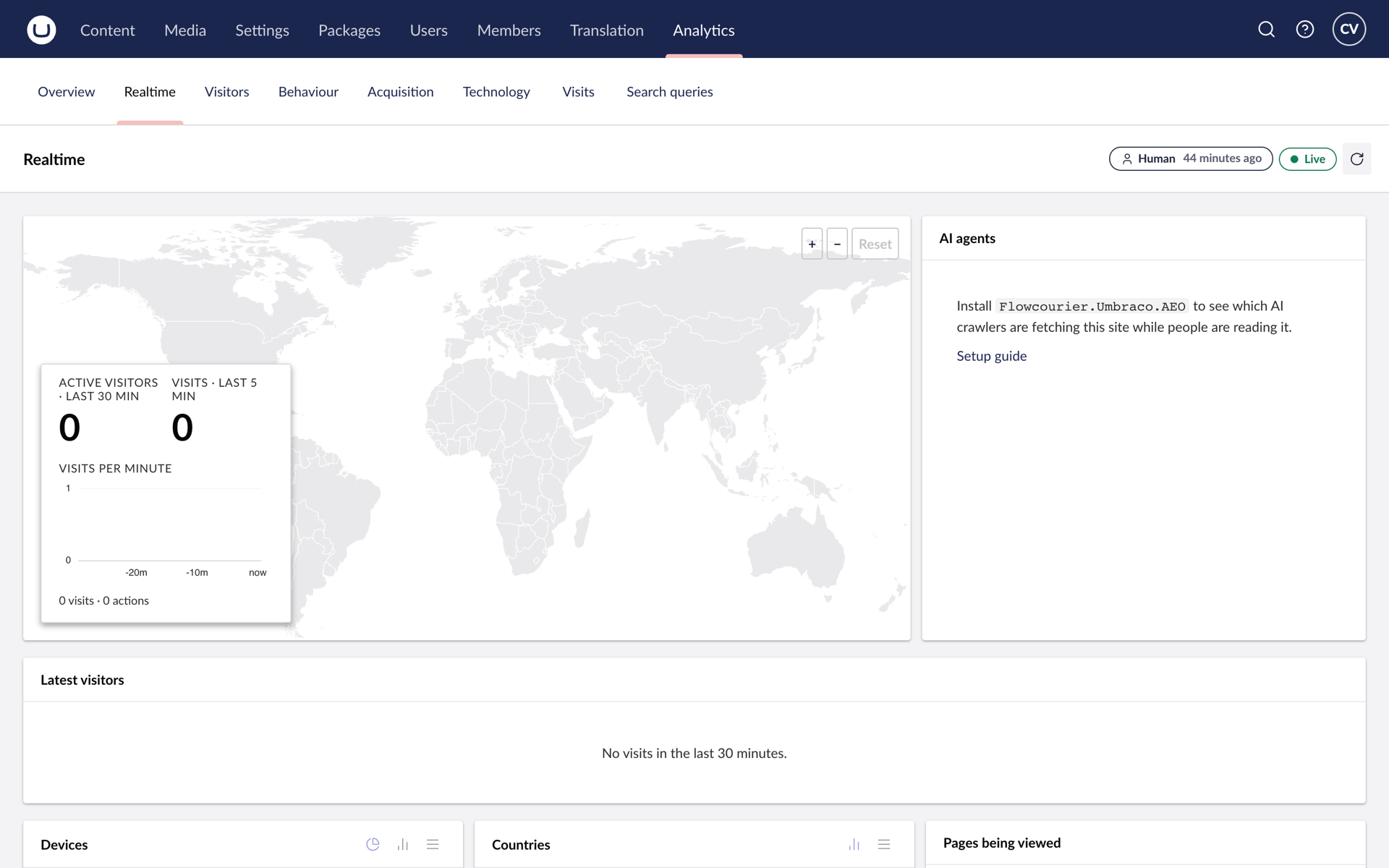
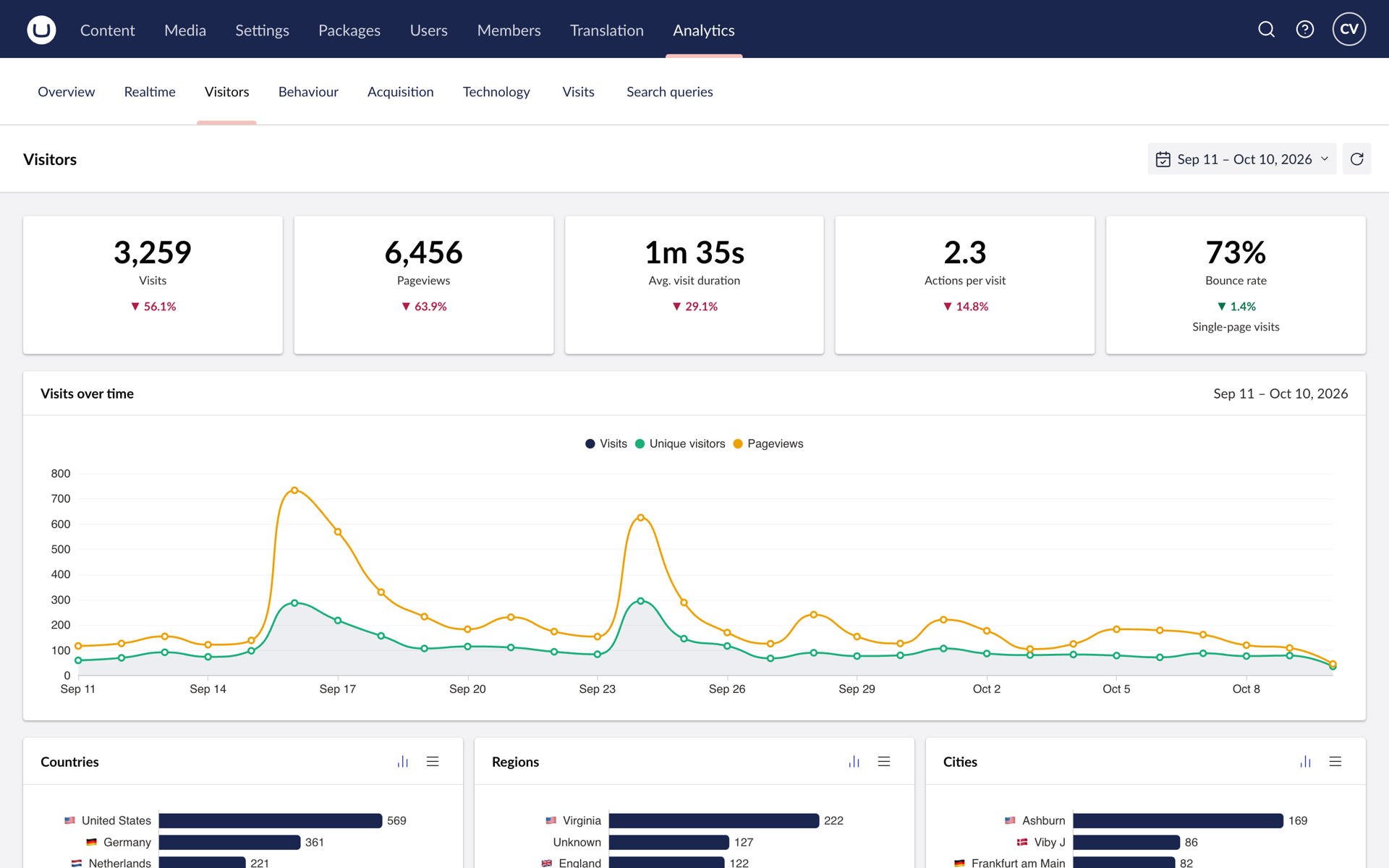
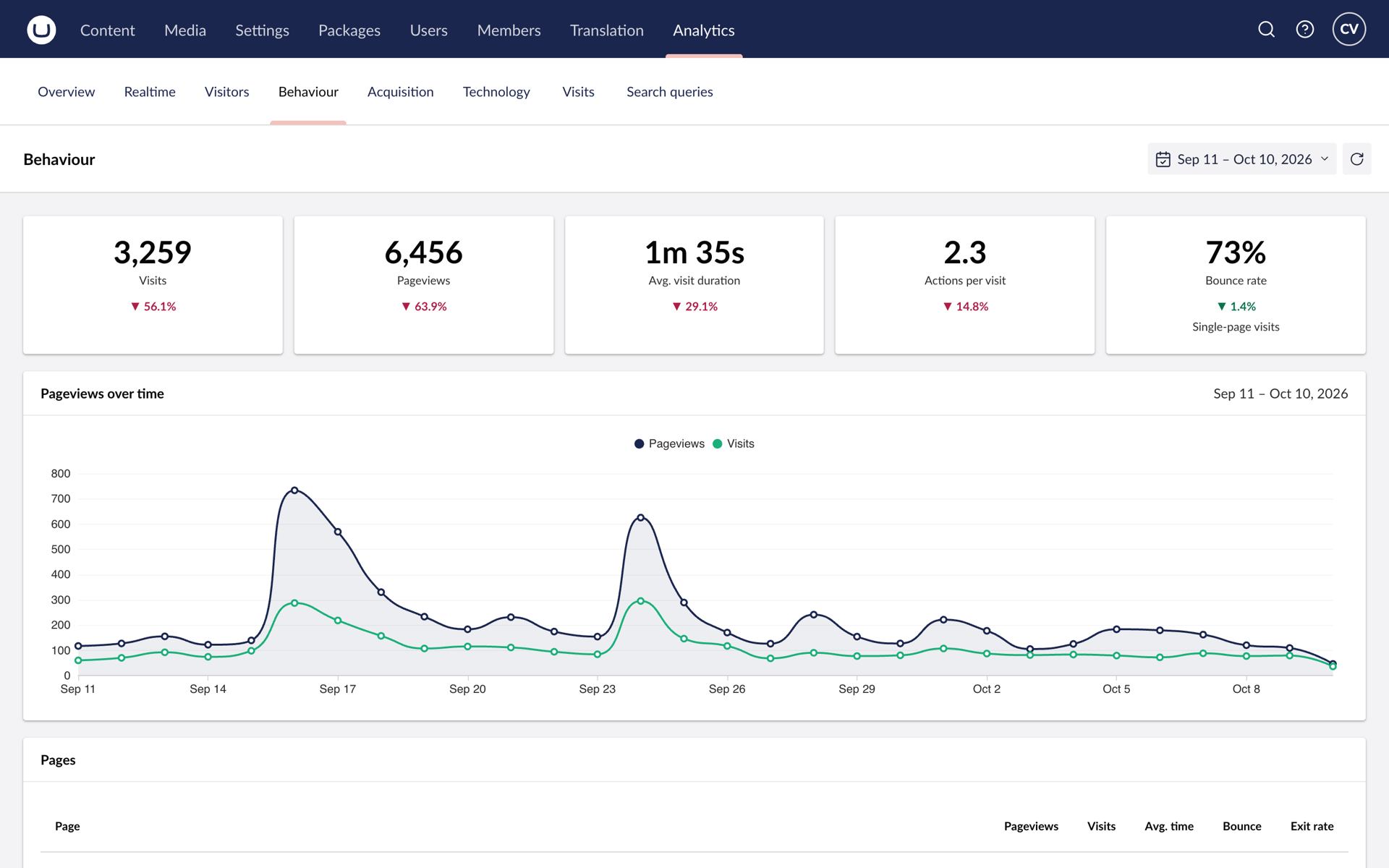
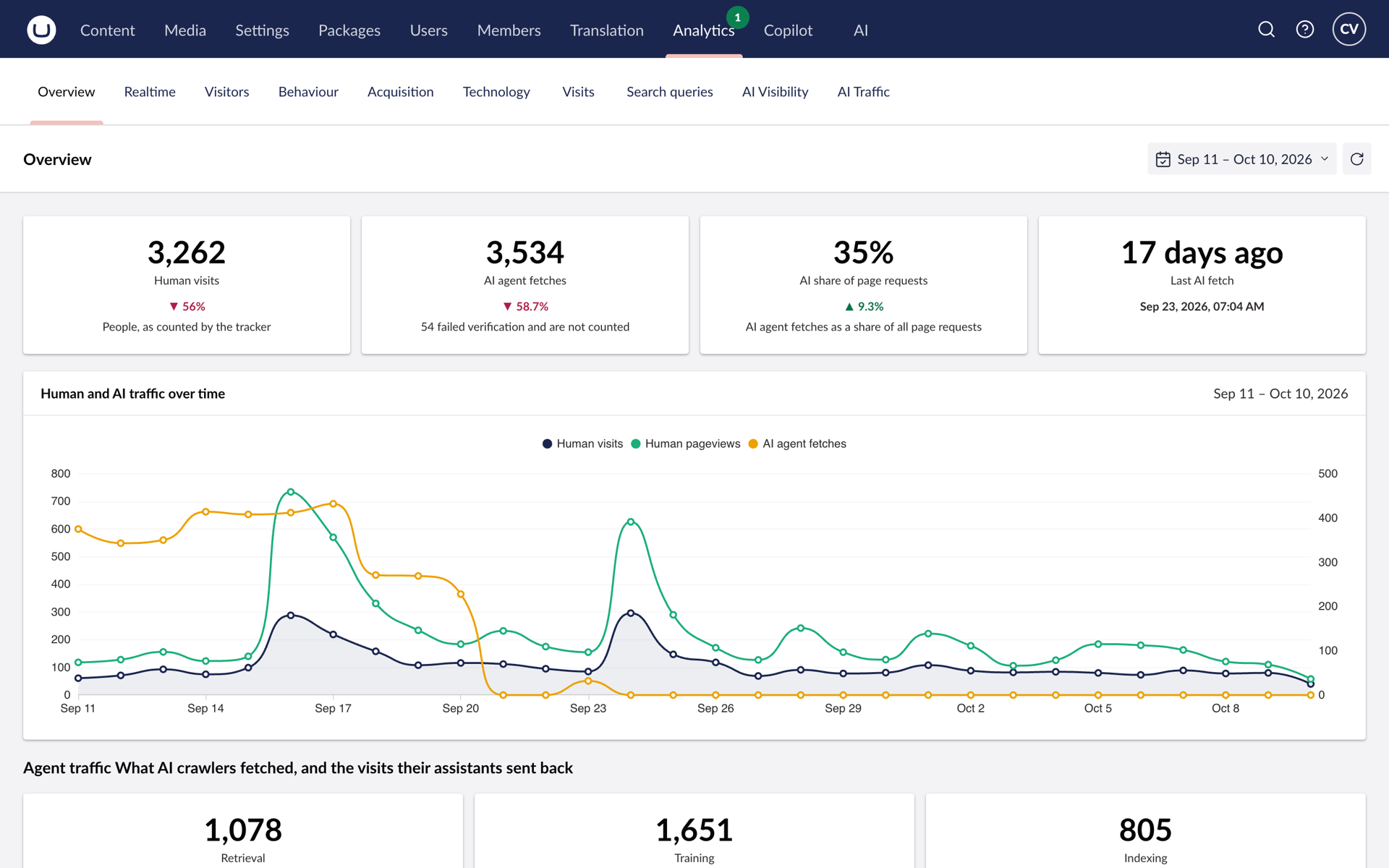
Editors get the numbers where they already are: an Analytics section with Overview, Realtime, Visitors, Behaviour, Acquisition and Technology, a live visitor count in the top bar, and one date-range control that follows you from view to view.
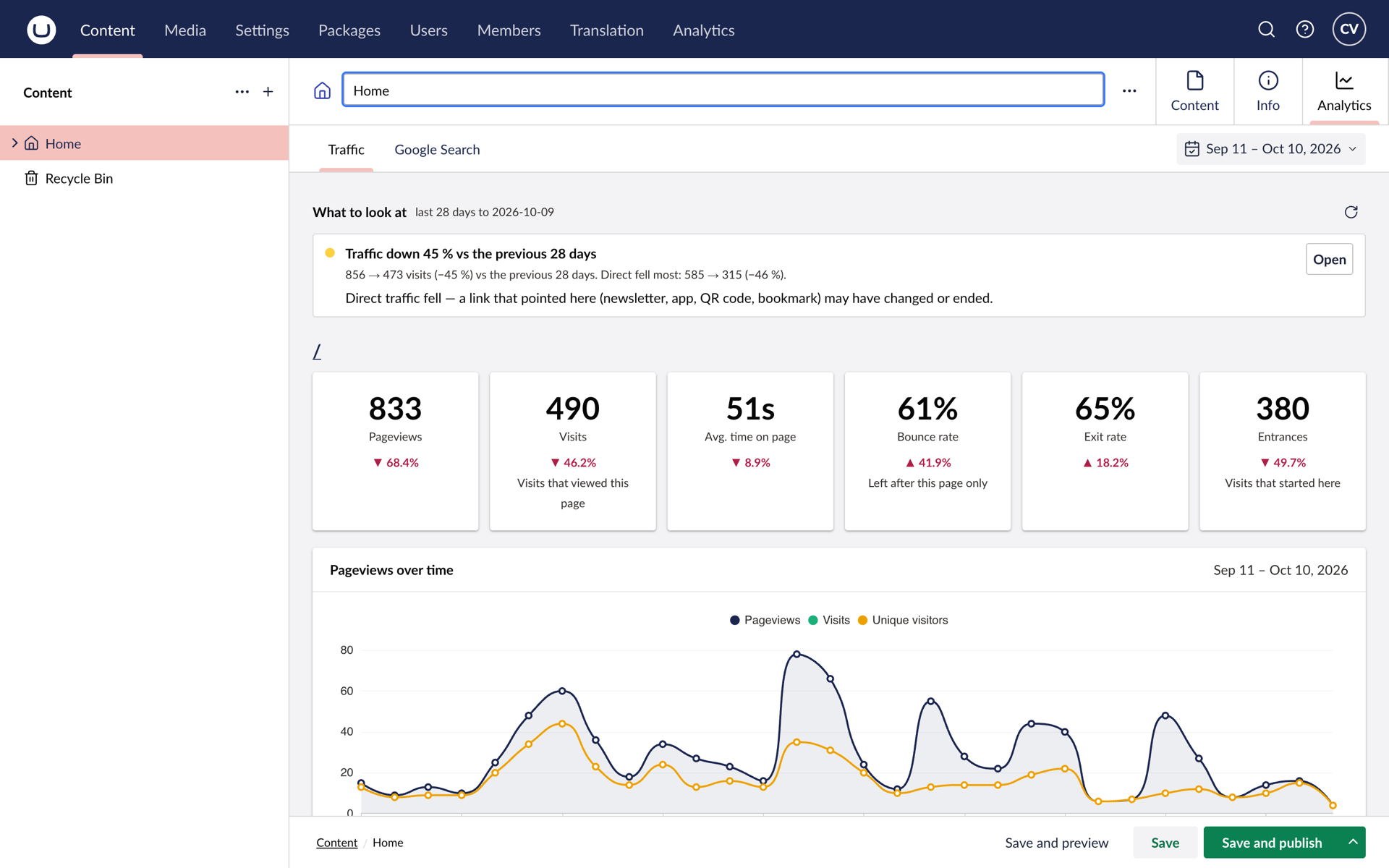
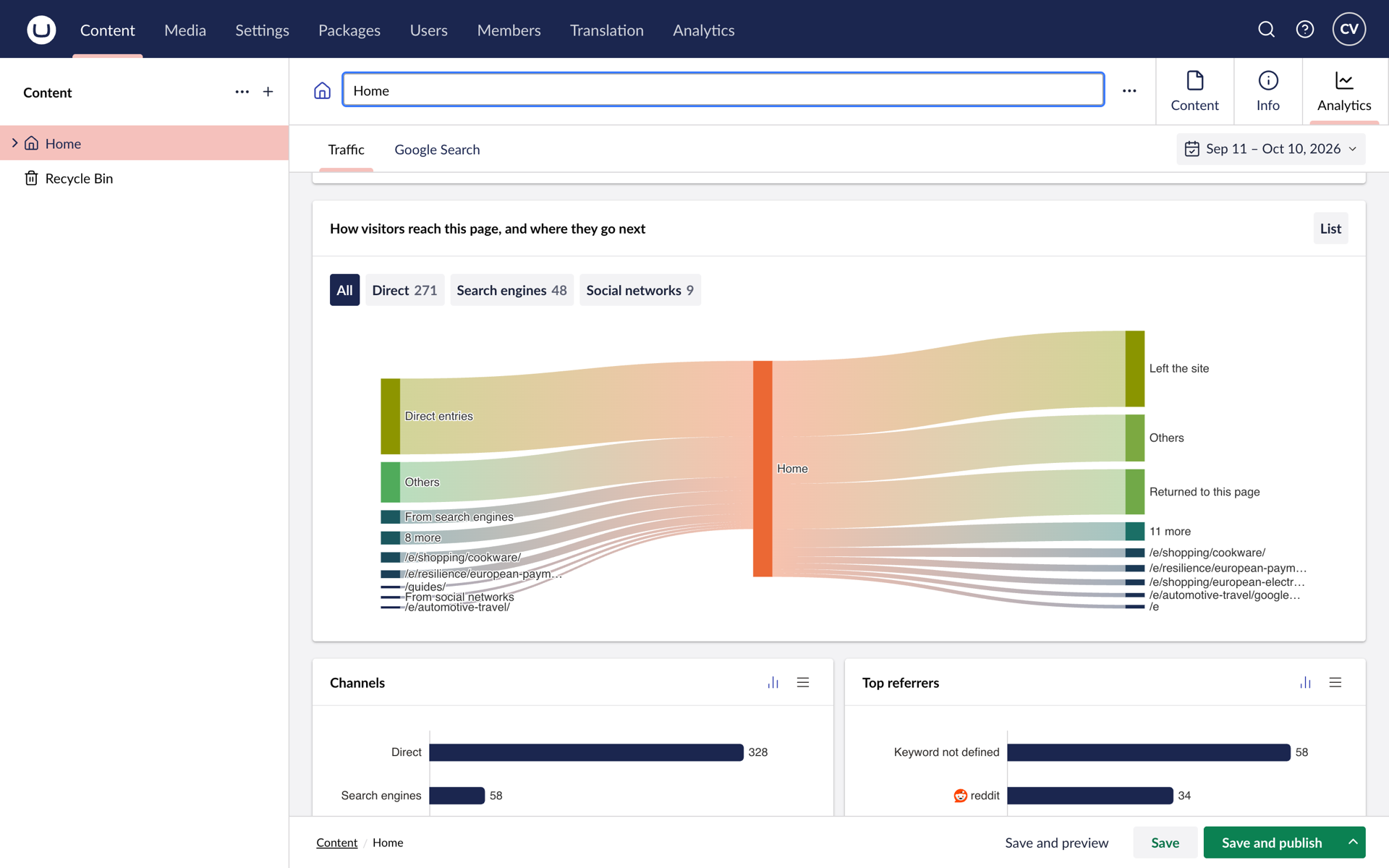
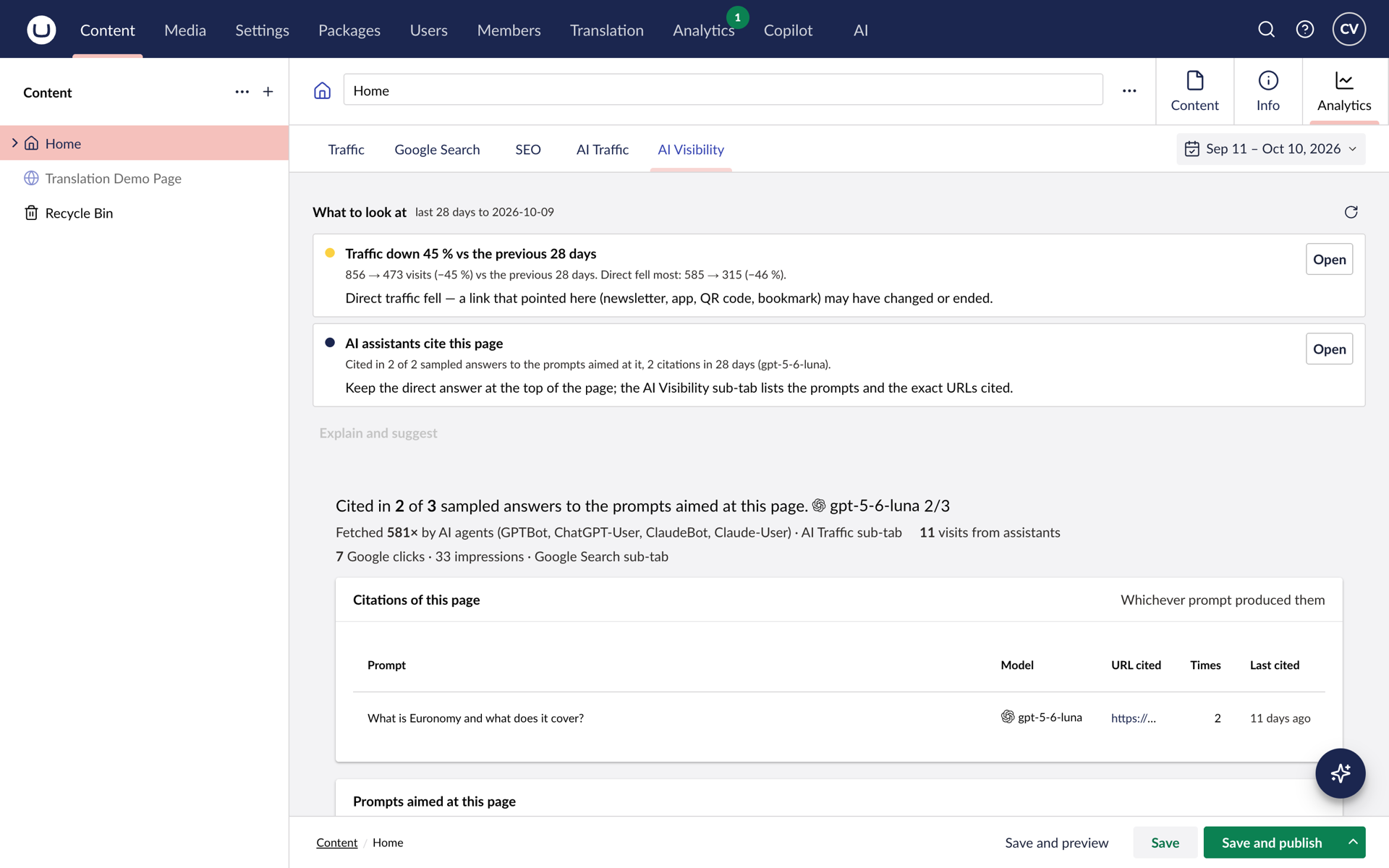
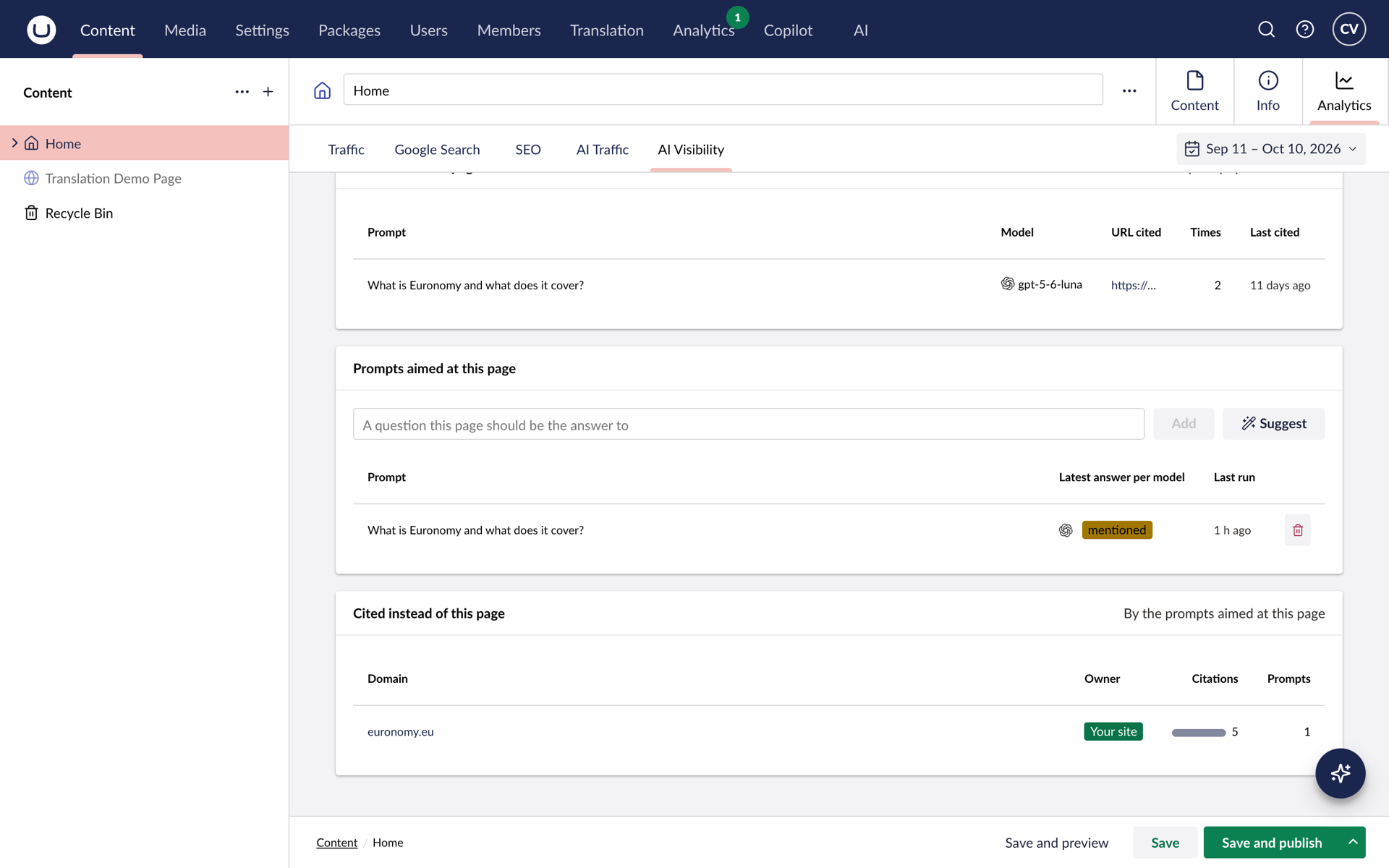
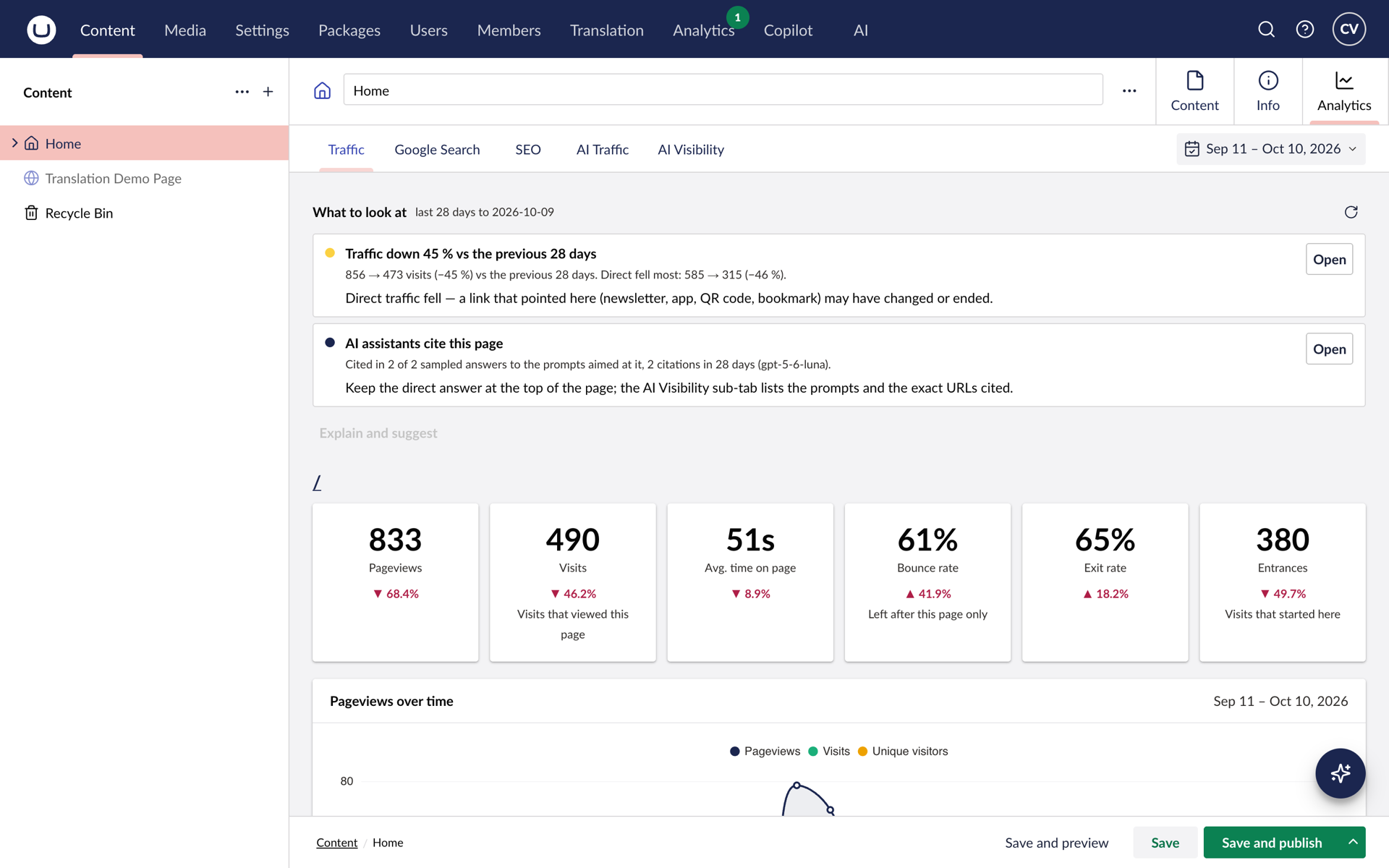
Analytics tab on every document
Pageviews, visits, time on page, bounce and exit rates against the previous period - plus where visitors came from and where they went next.
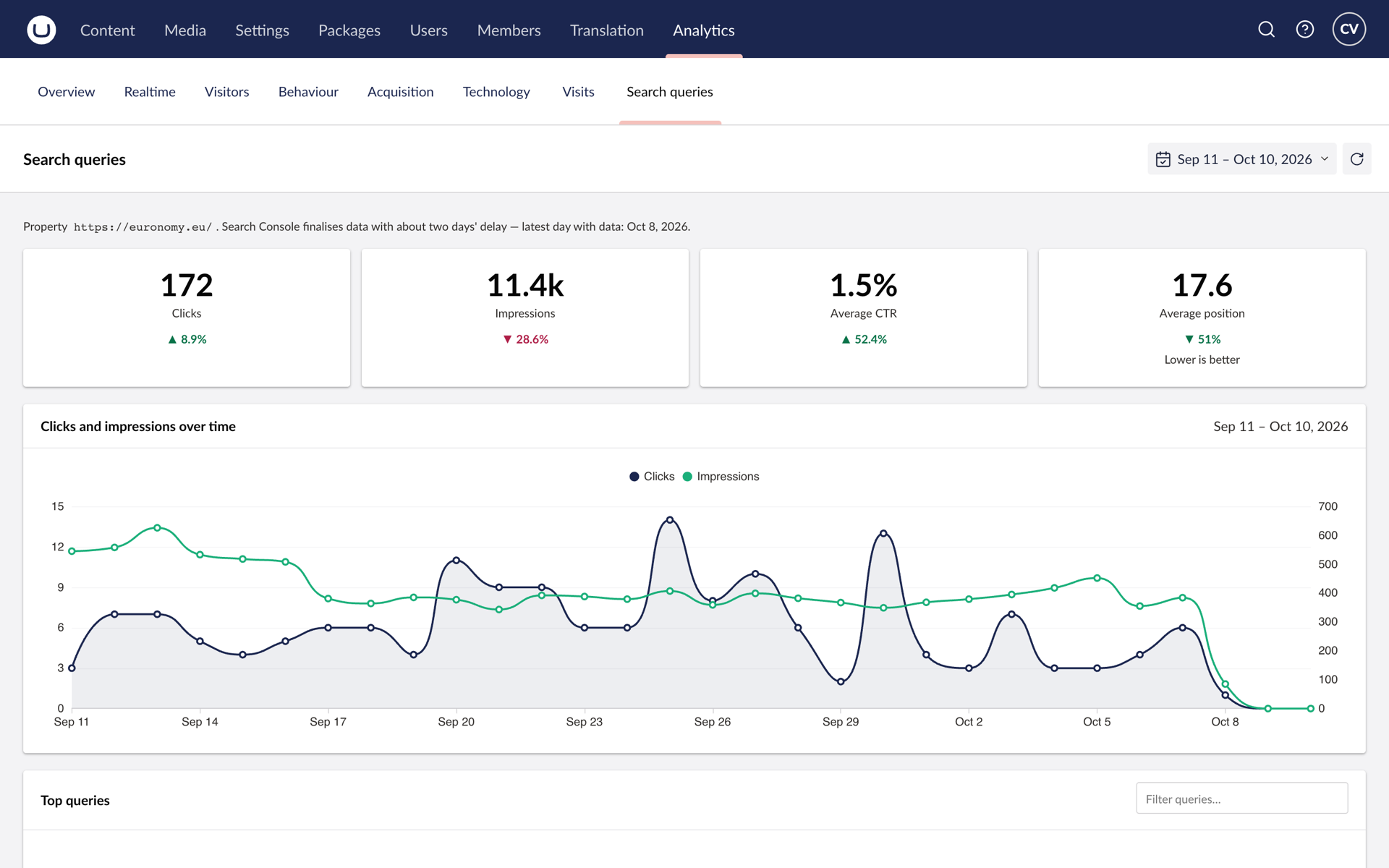
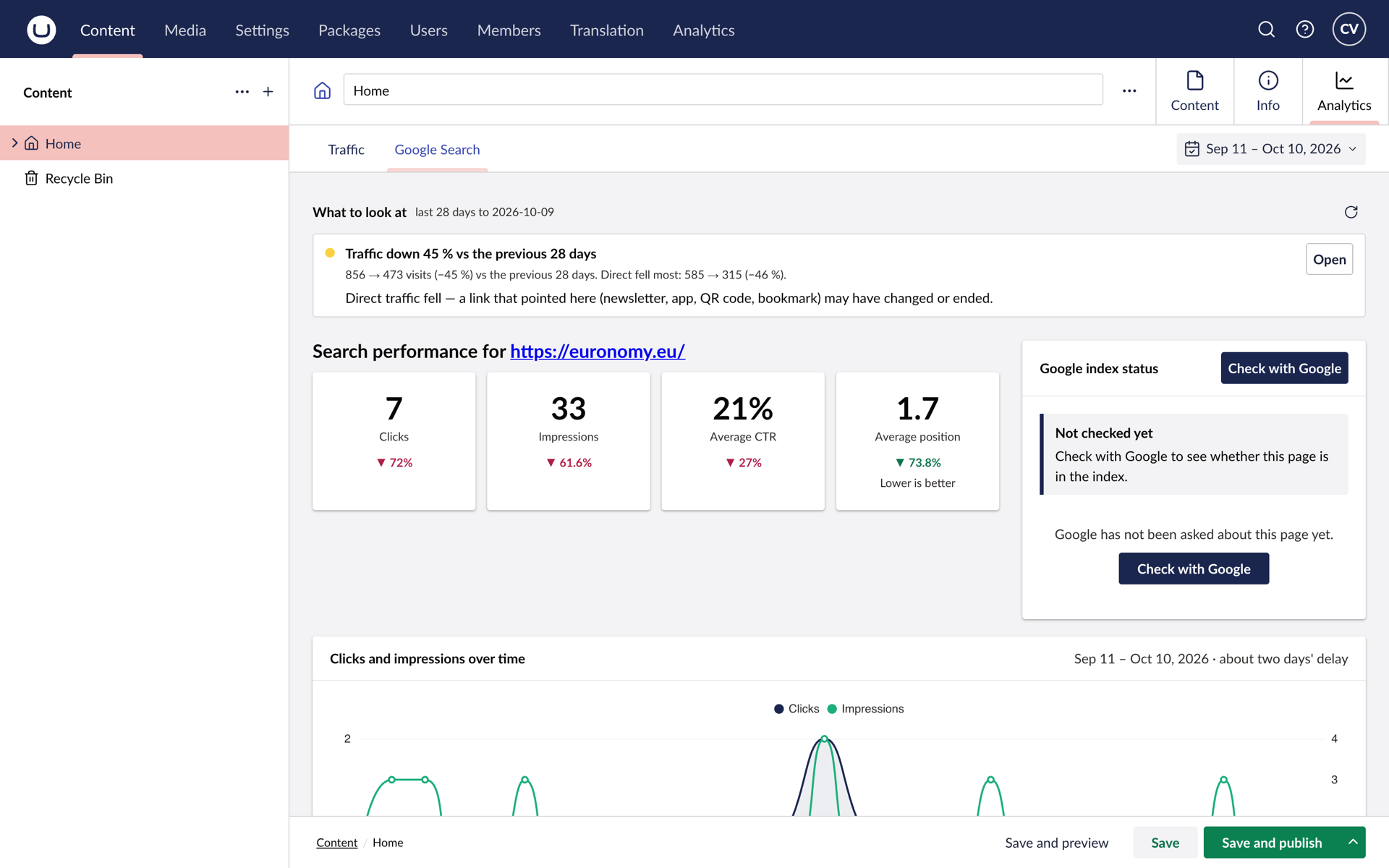
Google Search on the same tab
Optional Search Console and PageSpeed Insights: index status, the queries that bring people in, and Lighthouse scores.
Ask the Copilot
With the Analytics AI package, ask the Umbraco AI Copilot how a page is doing or which pages lost traffic - answered from measured data.
See it in the backoffice
Simple pricing
Start free. Pay once per site for AI Visibility and ad campaign reporting. No subscription.
Free
€0
Your Matomo data inside Umbraco.
- Six dashboards in the Analytics section
- An Analytics tab on every page
- Search Console and PageSpeed Insights
- No key, no data limit, commercial use included
Analytics Pro
AI Visibility€499 per site · one payment
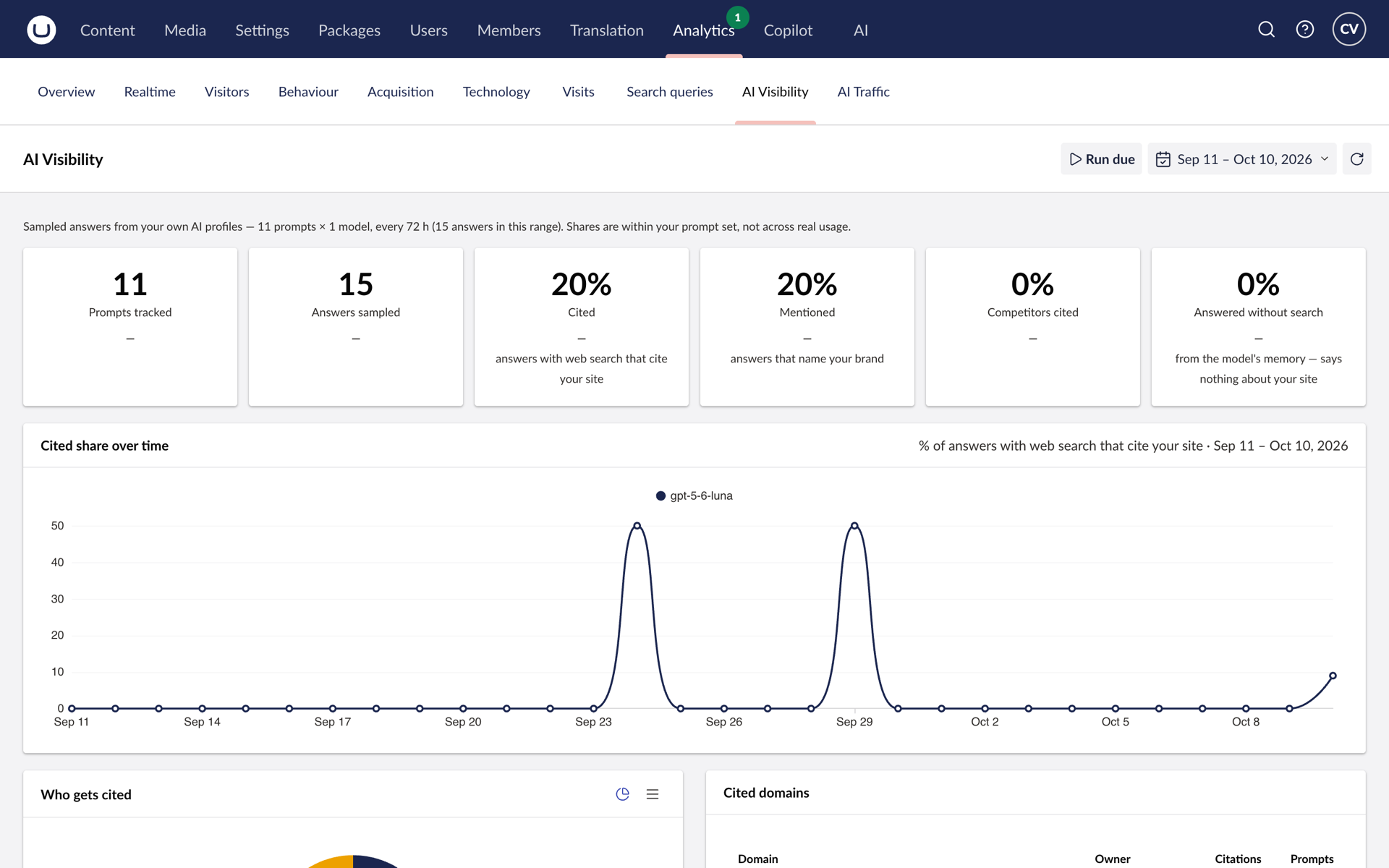
See whether ChatGPT and other assistants cite your pages.
- Everything in Free
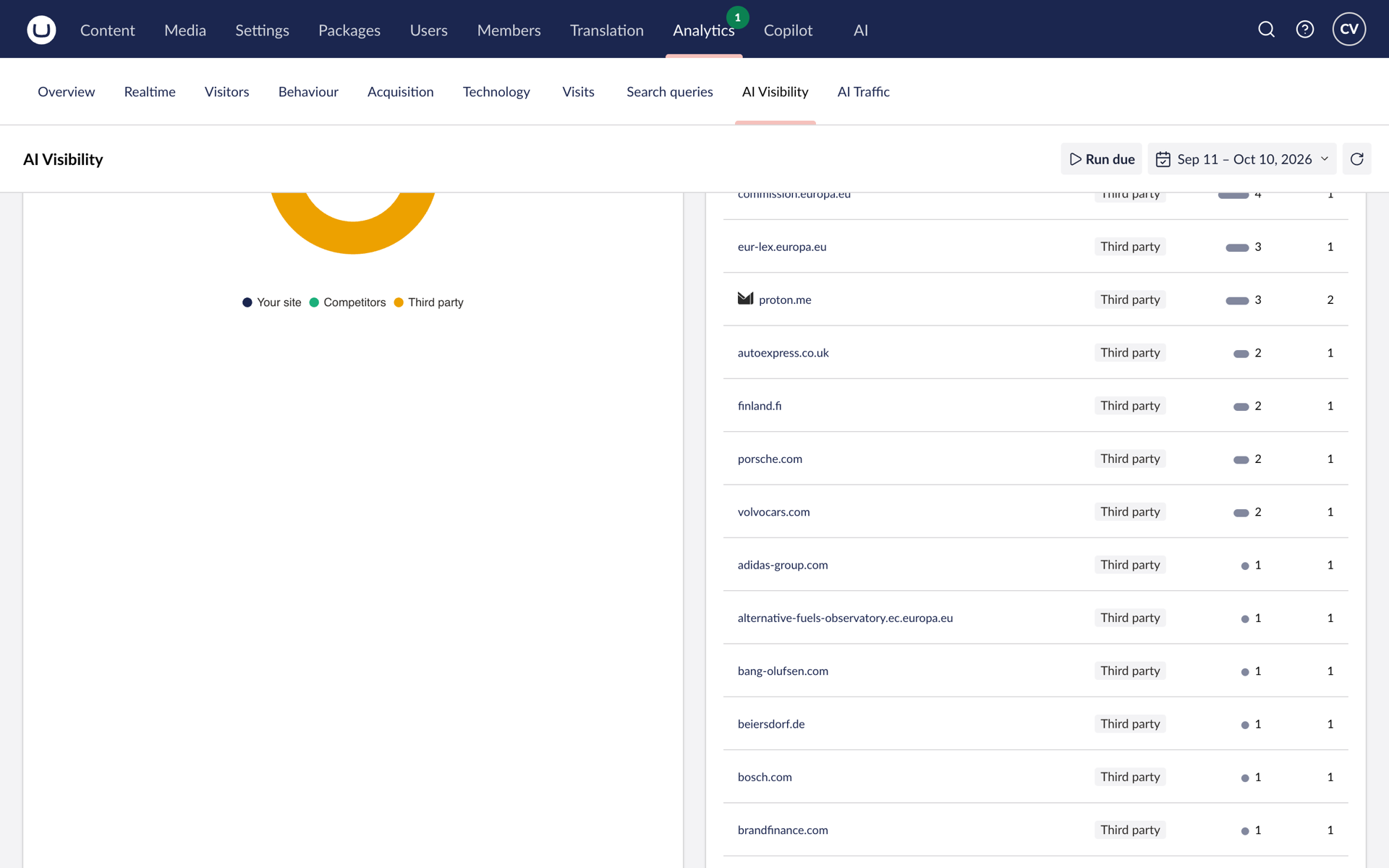
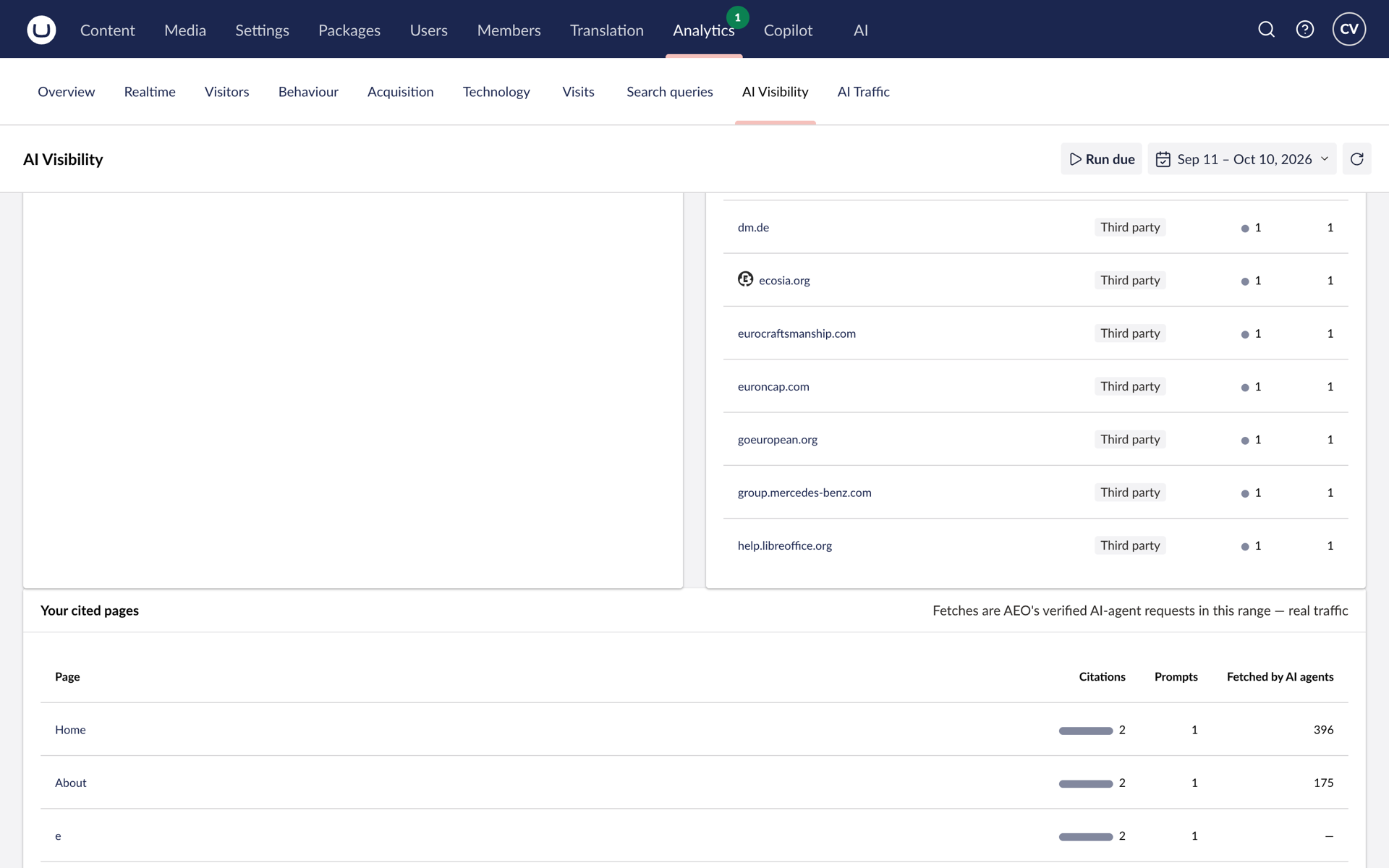
- AI Visibility: your questions, asked to AI assistants with web search
- Who gets cited: you, competitors or third parties
- Ad campaign reporting, down to each campaign
- Covers Umbraco 17 up to the next LTS, 21, updates included
Runs on your own AI provider key.
Prices exclude VAT. We invoice in EUR.
Compare editions
| Feature | Free | Analytics Pro |
|---|---|---|
| Reports | ||
| Overview, Realtime, Visitors, Behaviour, Acquisition, Technology | ||
| Date range on every report, no data limit | ||
| AI assistants as a traffic channel | ||
| Campaign traffic as a channel total | ||
| Ad campaign reporting: each campaign and its keywords | – | |
| Visitor journeys, realtime visits and page flow | ||
| On every page | ||
| Analytics tab with traffic and findings | ||
| Search Console: queries, index status, index tracking | ||
| PageSpeed Insights, desktop and mobile | ||
| AI Visibility | ||
| Your prompt set, asked through your own AI profiles with web search | – | |
| Who gets cited: you, competitors or third parties | – | |
| AI Visibility dashboard and a sub-tab on every page | – | |
| Prompt suggestions from a page's text and its Google queries | – | |
| AI findings in the per-page strip | – | |
| Up to a year of trend history | – | |
| Setup | ||
| Read-only tools for the Umbraco AI Copilot | ||
| Multi-site: one Matomo site per content root | ||
| Works with Google Analytics and Matomo | ||
| Key | None | Analytics Pro key |
| Price | €0 | €499 per site · one payment |
FOR DEVELOPERS
Up and running in four steps
The short version. The full guide with screenshots, configuration reference and troubleshooting is in the developer docs.
-
1 · Create a Matomo token
In Matomo: Administration → Personal → Security → Auth tokens. Use a user with view-only access and keep 'Only allow secure requests' ticked. Note the website ID.
Matomo -
2 · Install the package
dotnet add package Flowcourier.Umbraco.Matomo --prerelease. This brings in Flowcourier.Umbraco.Analytics.Core; no composer, no Program.cs changes.
Terminal -
3 · Configure the connection
Add Flowcourier:Matomo with Endpoint, TokenAuth, SiteId and SiteUrl. Keep the token in an environment variable or a secret store, not in source control.
appsettings.json -
4 · Grant the section
Restart, log in and open Analytics. Grant the section to other user groups under Users → Groups. Optional: switch on Search Console and PageSpeed Insights under Flowcourier:Analytics.
Backoffice
Does it need Matomo Cloud, or does self-hosted work?
Both. The package talks to Matomo 4.x or 5.x through the Reporting API with a view-only token you create in Matomo.
Which Umbraco and Matomo versions are supported?
Umbraco 17.5 and later on .NET 10, with Matomo 4.x or 5.x, self-hosted or Matomo Cloud, reachable over HTTPS from the Umbraco server.
Does it store visitor data in Umbraco?
No. Every figure comes from your Matomo Reporting API on request. No visitor data, no IP addresses and no extra tables in Umbraco.
Who can see the numbers?
The Analytics section is a normal backoffice section you grant per user group. The document tab is visible to anyone who can edit the page.
Is anything limited in the free edition?
No. Every dashboard, the document tab, the findings, Search Console, PageSpeed Insights and the Copilot tools are free, with no key, no domain restriction and no 30-day window, on commercial sites too. The only paid features are AI Visibility and ad campaign reporting; campaign traffic as a channel total stays free.
What do I need for AI Visibility besides the key?
The Flowcourier.Umbraco.Analytics.AI package, Umbraco AI with a chat profile whose model can search the web (an OpenAI Responses API model today) and your own provider key. Each run is a model call plus a web search billed to that key. A daily run budget and a prompt cap keep the cost predictable.
AI Visibility guide →Is it a yearly fee?
No. One payment per site. A key covers Umbraco 17 and every version up to and including Umbraco 21, the next long-term support release, with every package update in between. After that, you order an upgrade key for the next cycle.
What counts as a site?
The public domains listed on the key. Every environment under a listed domain works, local hosts always work, and a multi-site install needs each public domain on the key.
How do I install the key, and what happens without one?
Put it under Flowcourier:Licenses:AnalyticsPro in appsettings or an environment variable. AI Visibility and campaign reporting unlock on the next request, with no restart. Without a key, or when a trial expires, the reports keep working: the Campaigns card shows a Pro notice, AI Visibility shows a banner over the data already collected, sampling stops and prompt changes are refused.
Does it work on localhost or headless?
Yes. Set Flowcourier:Analytics:SiteUrl to the public origin and the reports map to it. On a headless site, documents without a template get the Analytics tab when you list their document types under Flowcourier:Pages:IncludeDocumentTypes, or set Flowcourier:Pages:SiteUrl so the tab can probe the front end. AI Visibility samples outbound, so it works headless too. Multi-site installs get one Matomo site per content root.
What about Google Analytics?
The Google Analytics provider reads your GA4 property into the same Analytics section, document tab and views. Install the provider you use, or both, and one Analytics Pro key covers either.
Google Analytics Dashboard →See it on a live site
Book a short meeting and we show the dashboards and the document tab, and go through what it takes to run them on your Matomo.