

Translation Agent

Translation Agent
Section titled “Translation Agent”The Translation Agent translates a content page into another culture variant directly from the Copilot, then routes the draft through an email-based review workflow: an editor sends the translation to a reviewer, the reviewer approves or requests changes, and reminders chase pending reviews automatically.
Prerequisites: Umbraco AI with a Chat profile, content types that vary by culture with the target languages added under Settings → Languages, and SMTP for the approval emails.
Install
Section titled “Install”dotnet add package Flowcourier.Umbraco.AI.Agents.TranslationNo composer or startup code is needed. On the next startup the agent registers itself with the Umbraco AI Copilot (a Chat profile must exist first) and creates its review table automatically.
How editors use it
Section titled “How editors use it”-
Open a culture-varying page and launch the Copilot, or use the Translate… button in the workspace footer.
-
Pick the Translation Agent and use the Translate… starter, then choose the target language. It can also be given as an ISO code (
da-DK), a prefix (da) or a name (“Danish”).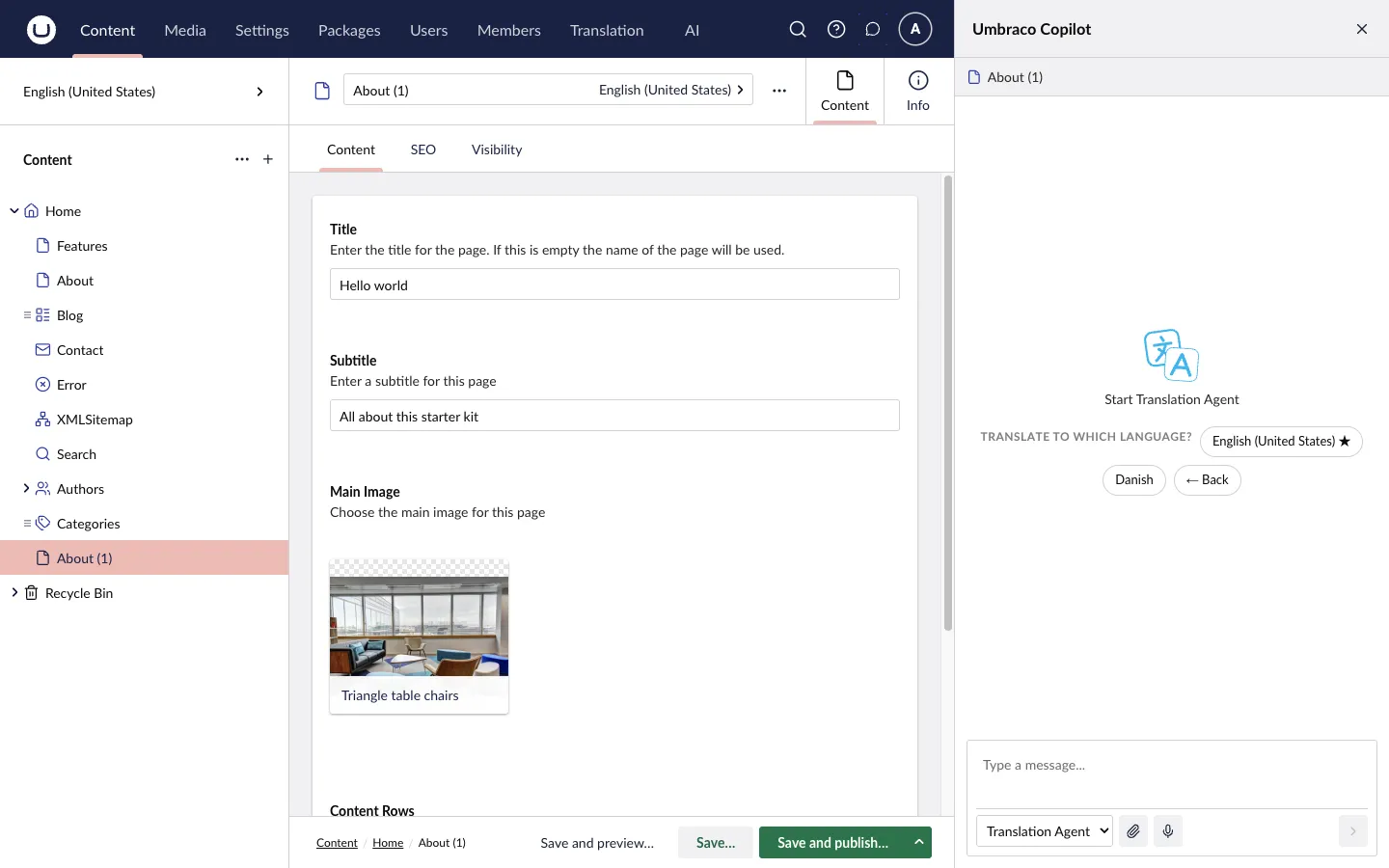
-
Confirm with Start translation.
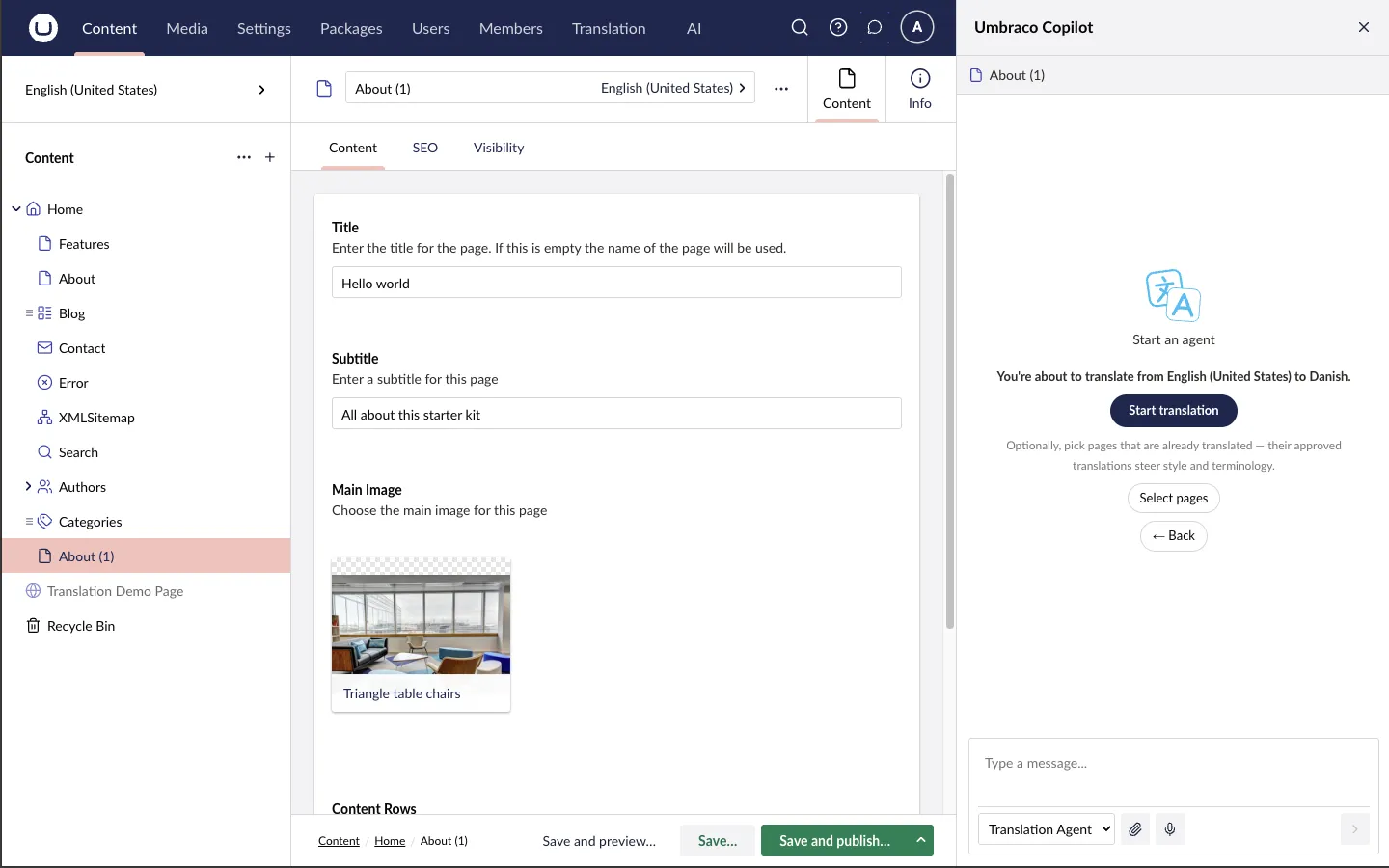
Optionally use Select pages first to point at pages that are already translated into the target language. Their approved translations are handed to the agent as style examples, so tone, phrasing and terminology match what you have already published. It is optional and free — skipping it just translates from the source alone.
-
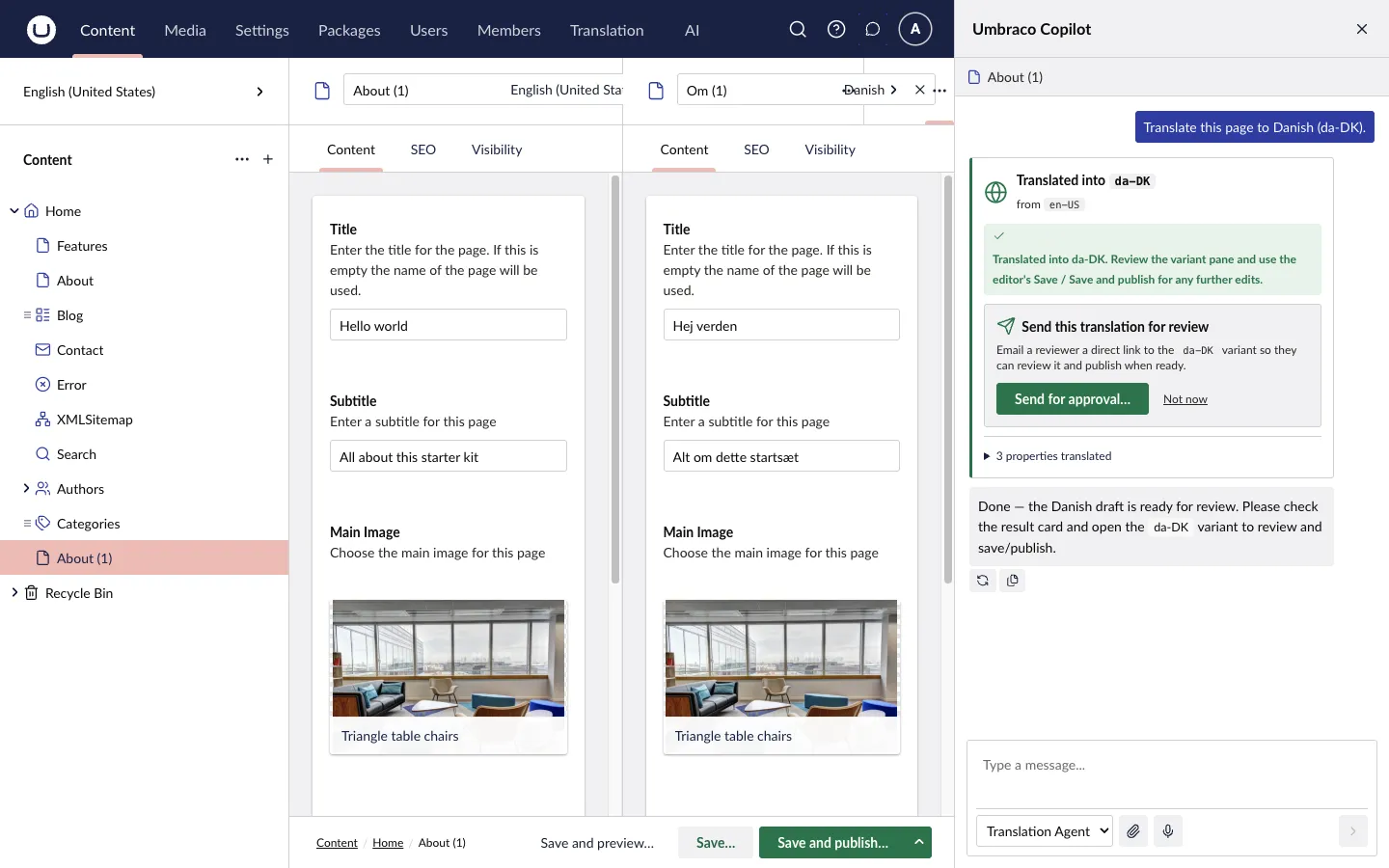
The agent translates the node name and every culture-varying property — plain text, rich text (HTML tags preserved) and Block List/Block Grid content (only human-readable text is translated; structure, GUIDs and aliases stay untouched) — and saves the result as a draft in the target culture only. The source culture is never modified.
-
The editor reviews the draft and either publishes it directly or sends it for approval.
The Translation Agent view
Section titled “The Translation Agent view”Translation → Flowcourier → Translation Agent is the agent’s home in the backoffice: the actions on the left, the current state of the install on the right — license, the active translation engine, the review queue by status, and the termbase size, each card linking to where you act on it.
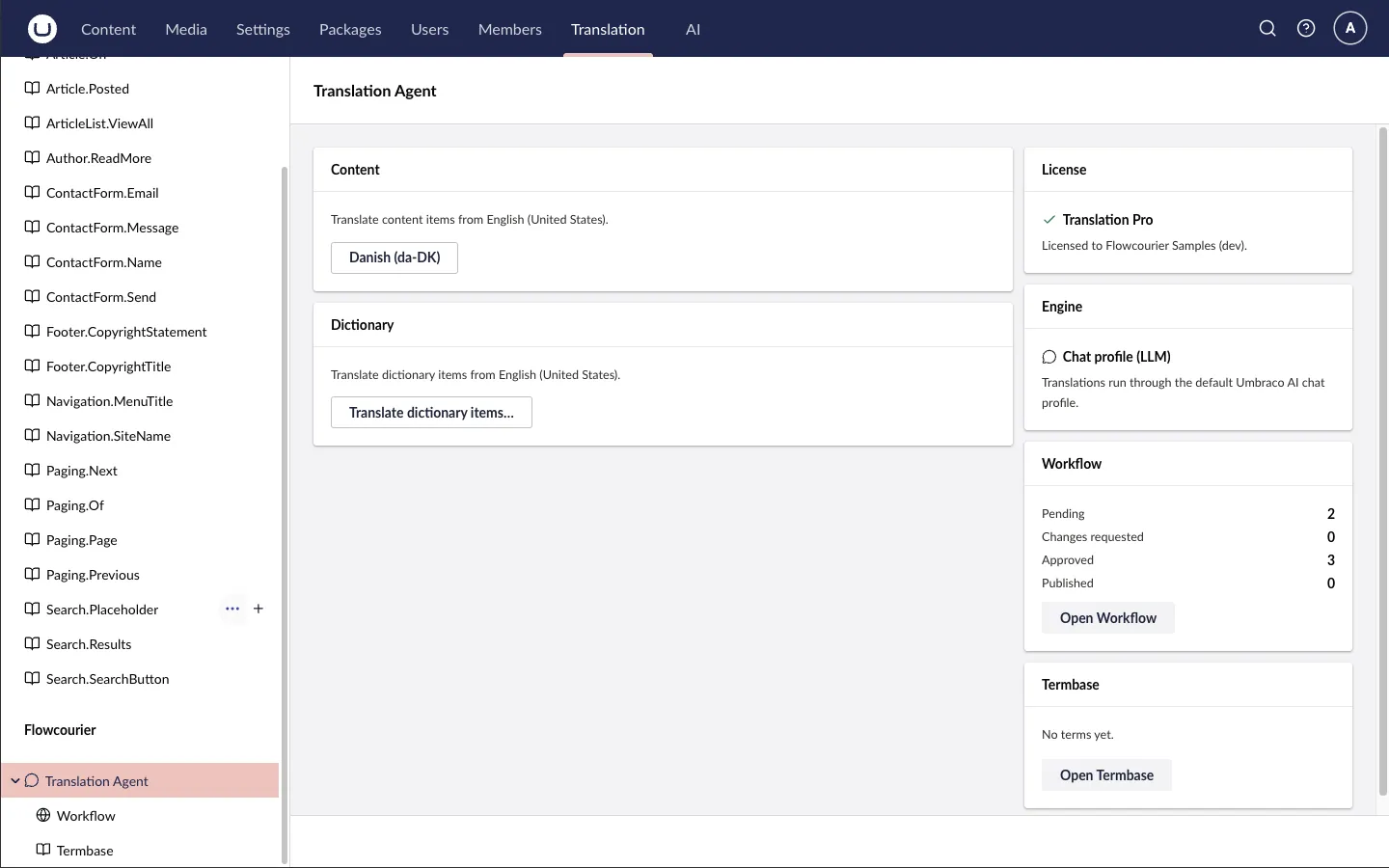
The Content card translates pages from the view itself; without a Translation Pro license the language buttons are disabled there, since single pages are always translated free from the page editor’s Copilot.
Dictionary items
Section titled “Dictionary items”The same view also translates dictionary items — free in every edition. Use Translate dictionary items…, pick the items from the dictionary tree, pick the target language, and the default-language values are translated and saved. Existing target values for the picked items are overwritten; an item whose translation fails is left untouched (dictionary lookups fall back to the default language at runtime anyway). On licensed installs termbase terms are enforced, same as for content.
Review workflow
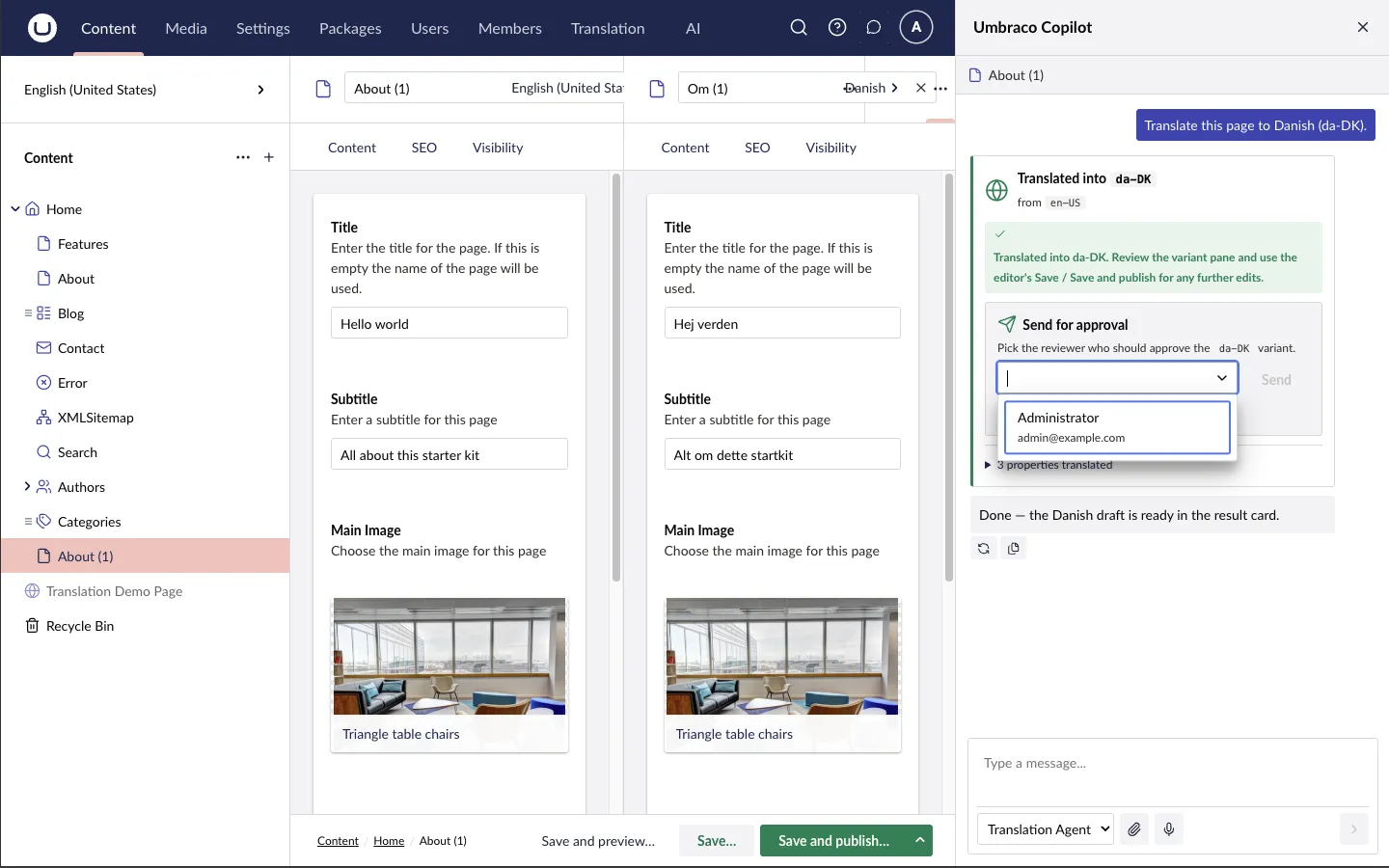
Section titled “Review workflow”Send for approval — the editor picks the reviewer from a searchable list of backoffice users. Only existing, active backoffice users can receive approvals, and when the user group configuration restricts language access, the list only offers users who can access the target language.
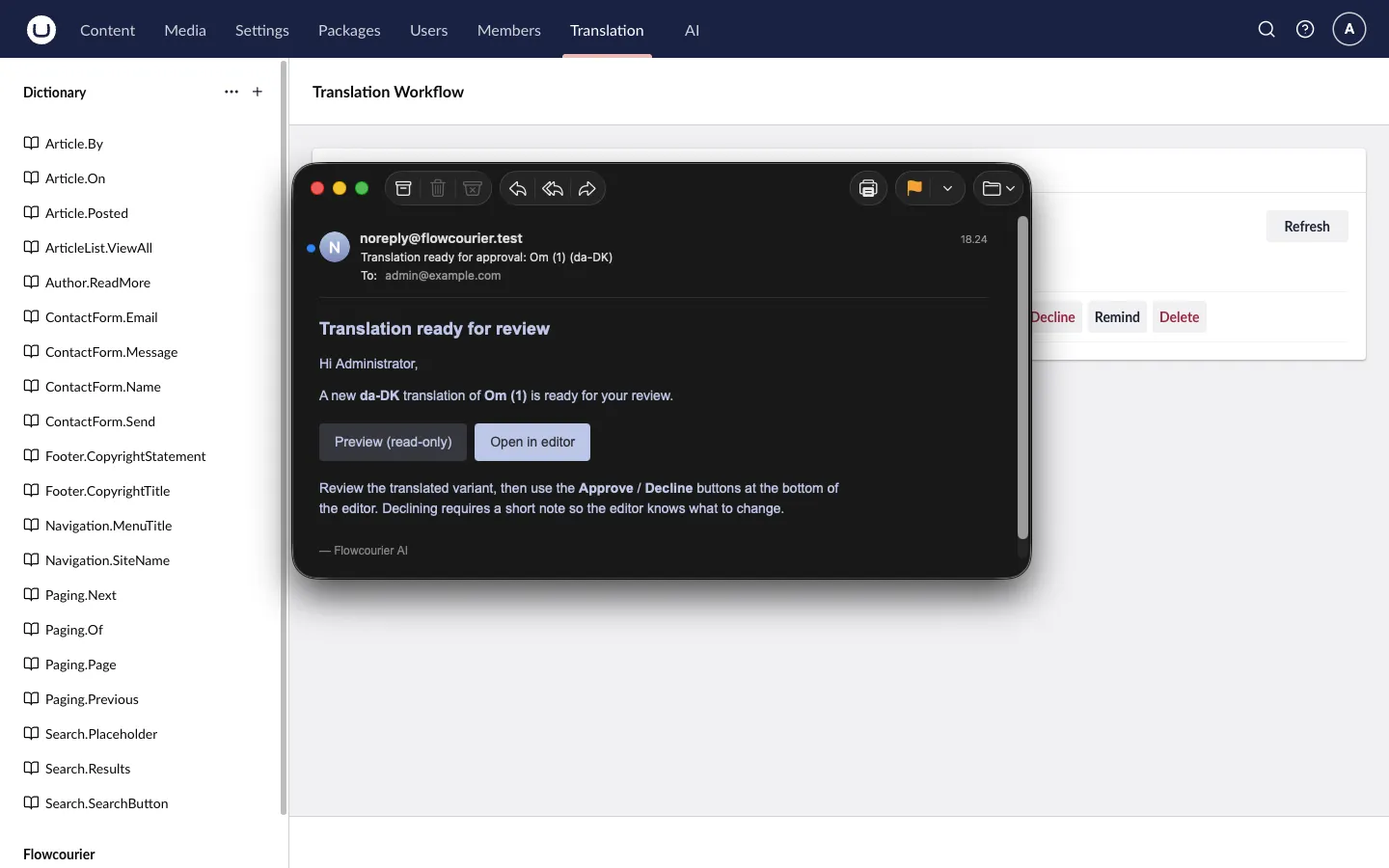
The reviewer receives an email with a read-only preview link and a direct link to the variant in the editor:
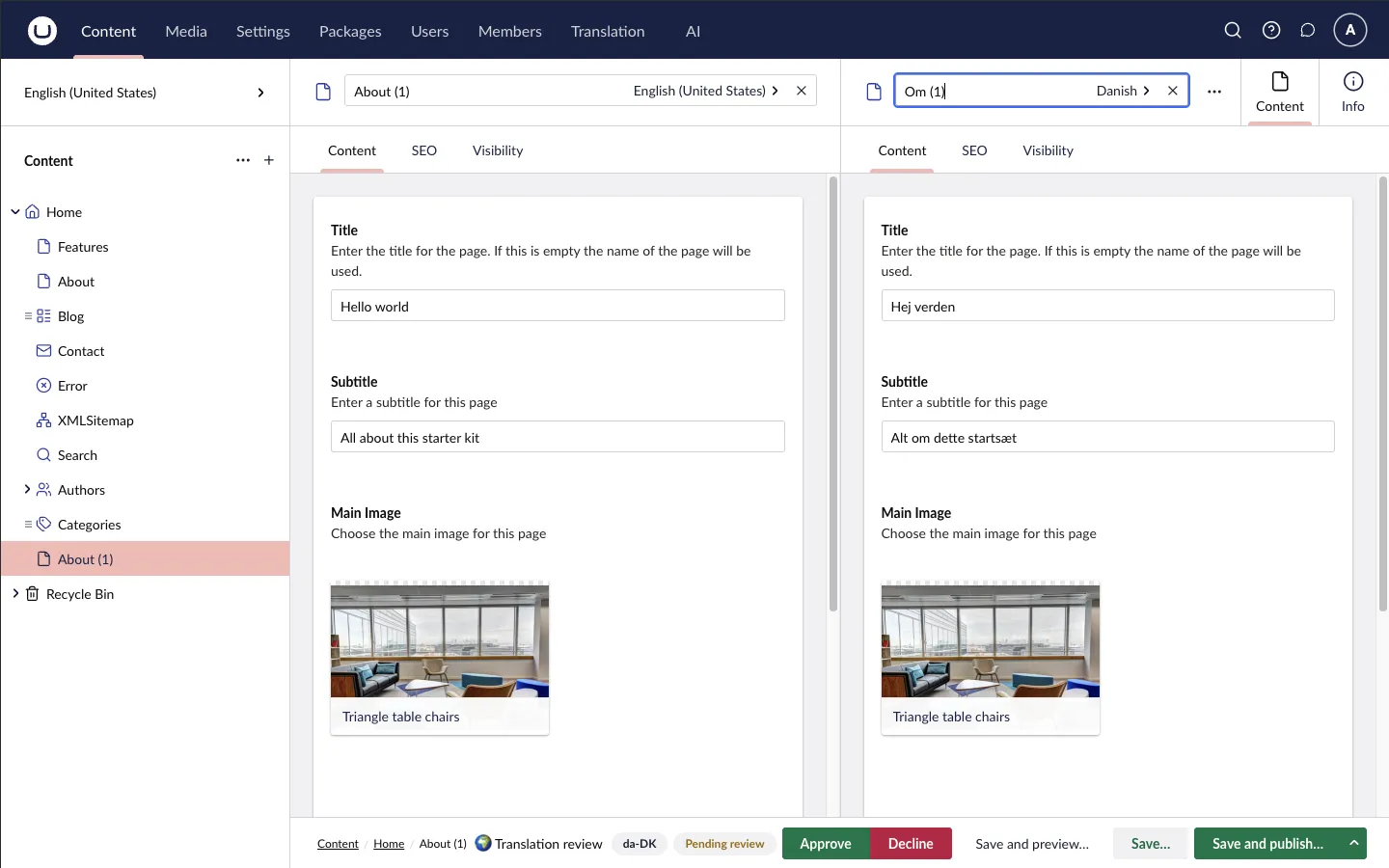
Approve / Decline — the reviewer acts from the buttons in the document workspace footer, with source and translation side by side, or from the Translation Workflow dashboard in the Translation section:
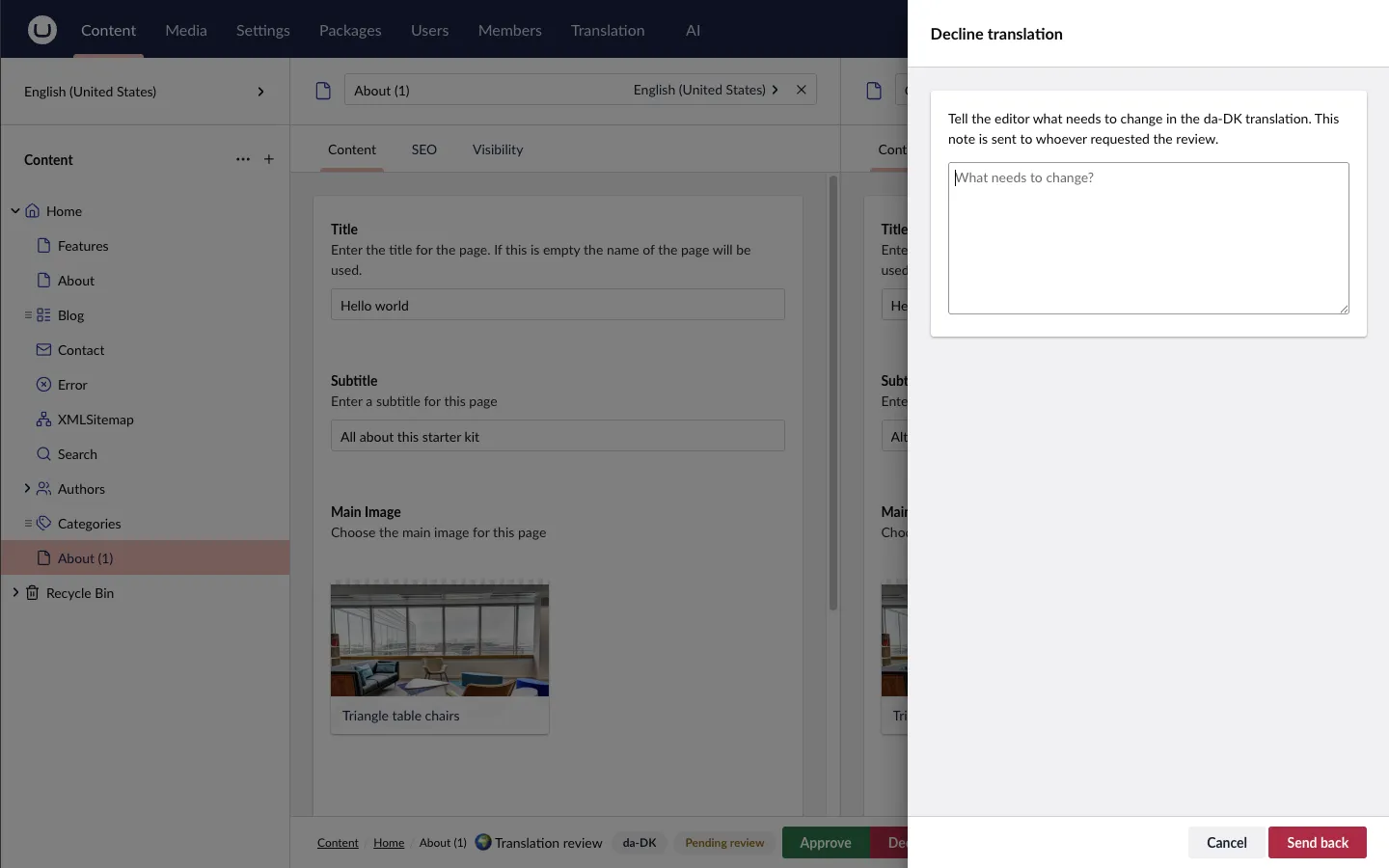
Declining requires a note explaining what needs to change; it is emailed to whoever requested the review:
Translation Workflow dashboard — all reviews are listed under Translation → Flowcourier → Translation Workflow, filterable by status, with Approve, Decline, Remind and Delete actions:
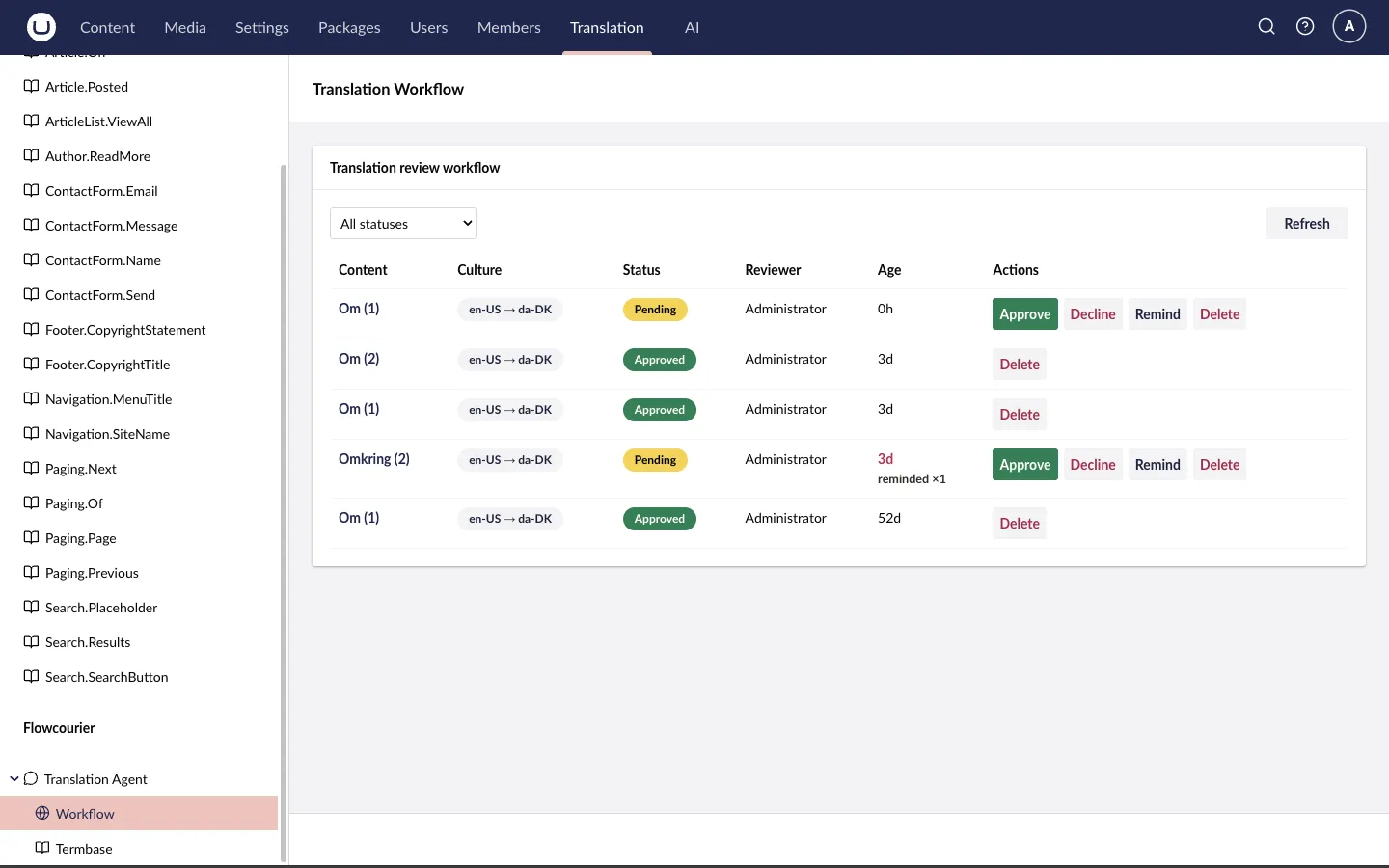
Statuses — a review moves through Pending → Approved/Published, ChangesRequested (after a decline, the editor can resubmit) or Cancelled. If a reviewer simply publishes the culture variant themselves, any open review for that content and culture is automatically marked Published and the requester is notified.
Required permissions
Section titled “Required permissions”Reviewers and editors using the dashboard need access to the Translation section — grant it under Users → Groups. Reviewers must be backoffice users with an email address.
SMTP configuration
Section titled “SMTP configuration”Approval, reminder and status emails are sent through Umbraco’s standard SMTP settings:
{ "Umbraco": { "CMS": { "Global": { "Smtp": { "Host": "smtp.yourprovider.com", "Port": 587, "Username": "…", "Password": "…" } } } }}From, Host and Port are the minimum. If no From address is configured, translation itself keeps working but emails are skipped with a log warning, and the Send for approval action returns an error explaining that the SMTP From address is missing.
For local development you can write emails to a folder instead of a real server:
"Smtp": { "DeliveryMethod": "SpecifiedPickupDirectory", "PickupDirectoryLocation": "umbraco/Data/emails"}appsettings reference
Section titled “appsettings reference”All settings are optional — the agent works out of the box with the defaults below. The effective configuration is shown read-only under Settings → Flowcourier → Translation, including a copyable override snippet.
Flowcourier:Translation
Section titled “Flowcourier:Translation”| Setting | Default | Meaning |
|---|---|---|
KnowledgeContextAlias |
(empty) | Alias of an Umbraco AI Context whose Brand Voice / Text resources are injected into every translation prompt — use it for terminology lists, tone-of-voice rules or do-not-translate terms. Create the Context in the backoffice AI section and reference its alias here. Empty disables knowledge injection; an invalid alias is ignored. |
Flowcourier:TranslationReview
Section titled “Flowcourier:TranslationReview”| Setting | Default | Meaning |
|---|---|---|
PublishOnApprove |
false |
When false, approval only marks the review Approved and leaves publishing to the requester. When true, the culture variant is published immediately on approval. |
RemindersEnabled |
true |
Master switch for the reminder background job. |
ReminderAfterHours |
24 |
A pending review becomes eligible for a reminder once it is this many hours old. |
ReminderIntervalHours |
24 |
Minimum hours between reminders for the same review. |
MaxReminders |
3 |
Maximum reminders sent per review. |
ReminderScanIntervalMinutes |
60 |
How often the background job scans for due reminders. |
Example with everything overridden:
{ "Flowcourier": { "Translation": { "KnowledgeContextAlias": "translation-knowledge" }, "TranslationReview": { "PublishOnApprove": true, "RemindersEnabled": true, "ReminderAfterHours": 24, "ReminderIntervalHours": 24, "MaxReminders": 3, "ReminderScanIntervalMinutes": 60 } }}Translation Pro
Section titled “Translation Pro”Everything on this page is free, including commercial production use. A Translation Pro license unlocks more inside the same package:
- Multi-page translation — translate a larger number of pages, or an entire site, in one batch run with a single approval covering the batch.
- Azure Translator engine — machine translation across more than 100 languages through your own Azure Translator resource; deterministic, fast and typically far cheaper than an LLM for bulk translation.
- Termbase — approved terminology and do-not-translate terms, enforced on every translation.
Good to know
Section titled “Good to know”- Review records are stored in a
FcTranslationReviewtable, created automatically on first startup — no manual migration. - The reminder job runs only on the scheduling server in load-balanced setups, so reminders are not duplicated.
- If the LLM call fails mid-translation, the affected property falls back to the source text verbatim rather than being left empty.