

3. Add Service Account User to Google Analytics
Give the Service Account Access to Your Google Analytics Property
Section titled “Give the Service Account Access to Your Google Analytics Property”In the previous step, we created a service account. Now we give that service account read access to your Google Analytics property — exactly the same way you would invite any user. If you are not familiar with Google Analytics access management, follow the steps below.
1: Log in to Google Analytics
Section titled “1: Log in to Google Analytics”Sign in at analytics.google.com with a Google account that has the Administrator role for the account or property you want to grant access to.
2: Open the Google Analytics settings
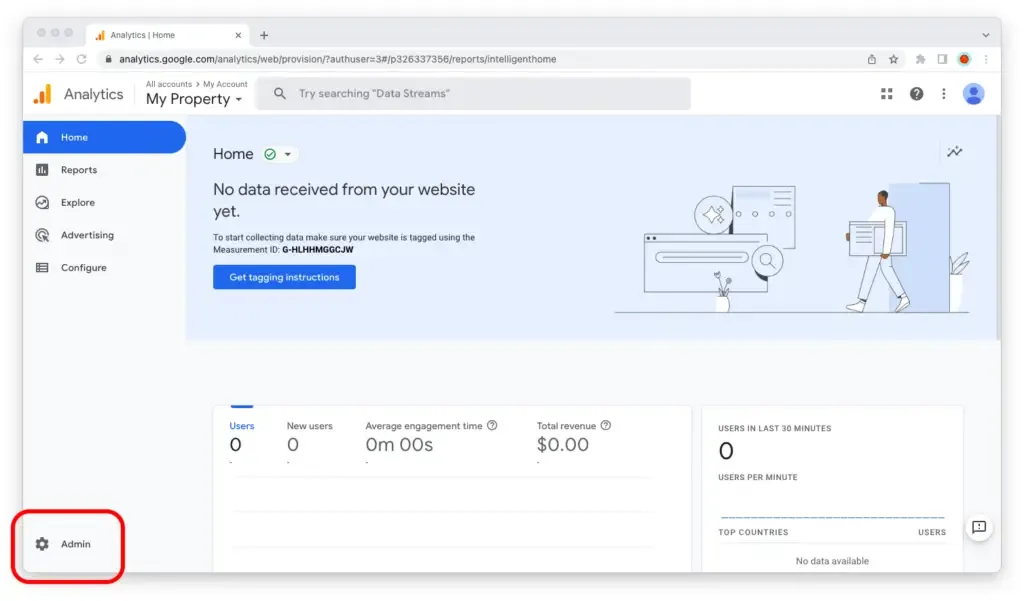
Section titled “2: Open the Google Analytics settings”Go to the property in question and click the gear icon in the lower-left corner of the screen.
3: Open access management
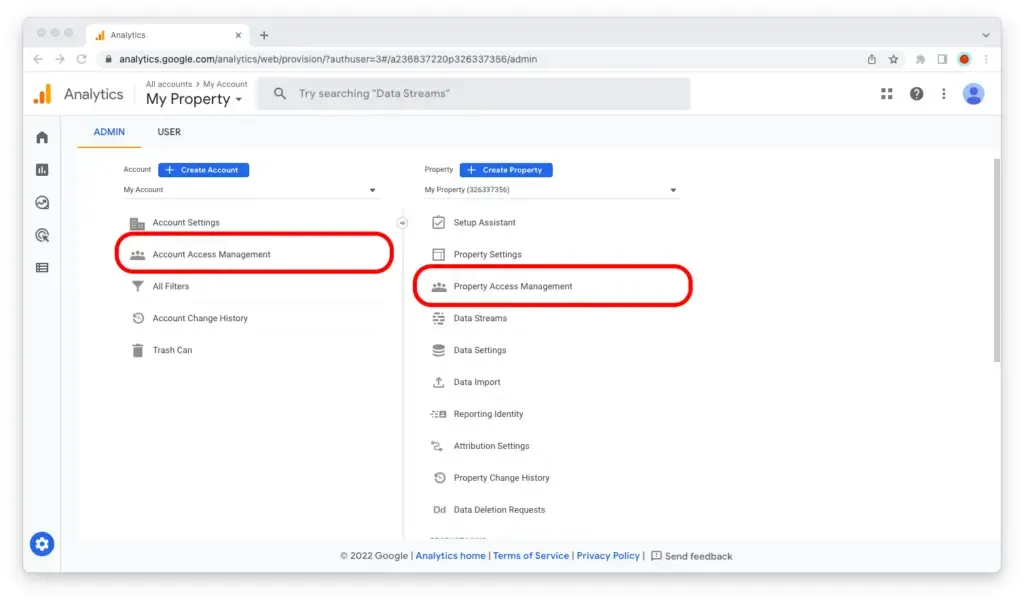
Section titled “3: Open access management”To grant access at the account level, click Account Access Management. To grant access to a single property only, click Property Access Management.
4: Add a user
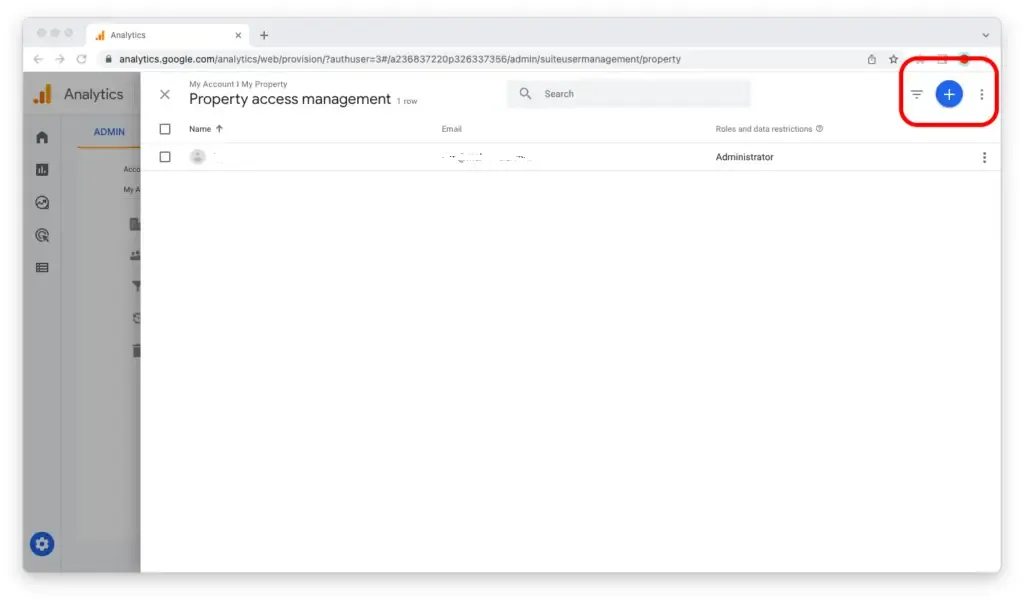
Section titled “4: Add a user”Click the blue + icon in the upper-right corner of the screen, then select Add users.
5: Paste the service account email
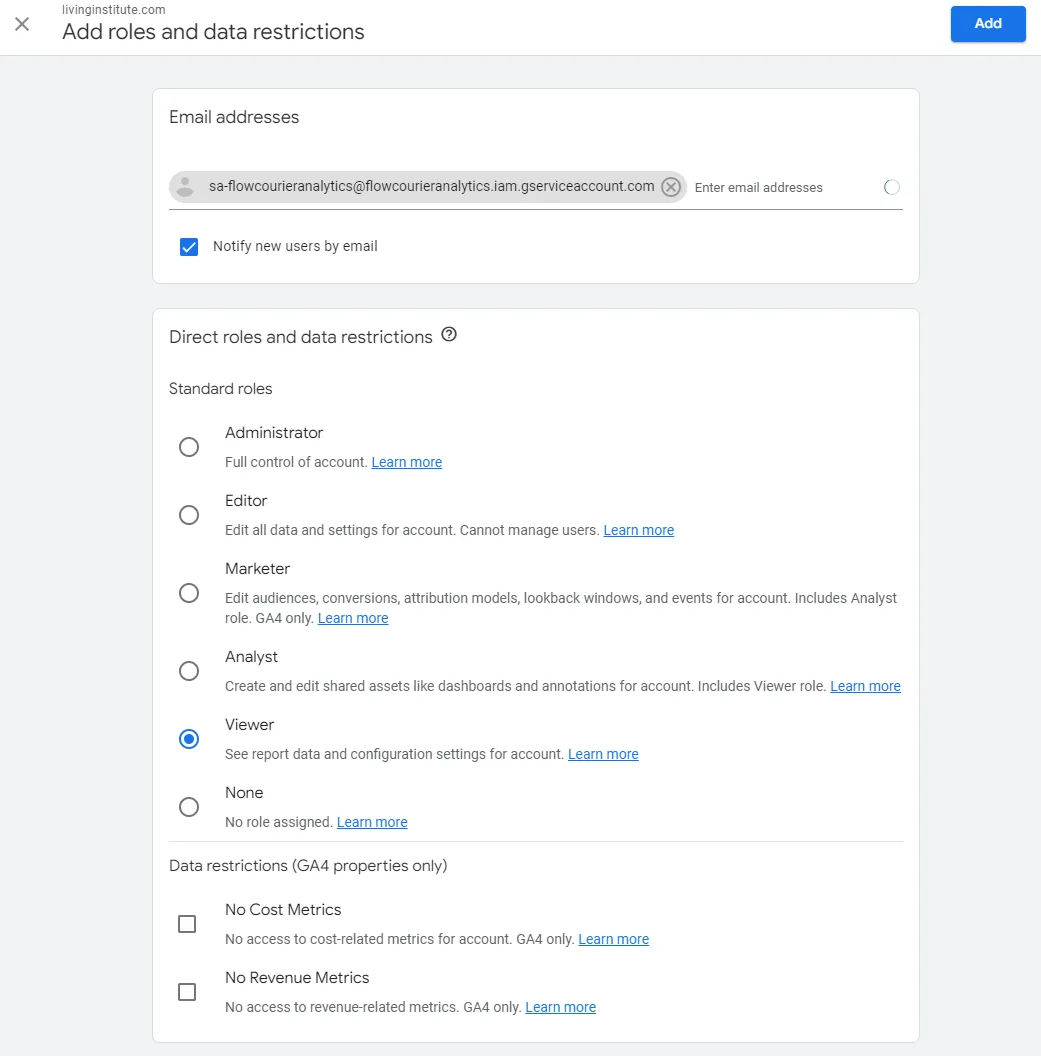
Section titled “5: Paste the service account email”Paste in the service account email address (copied in the previous step) and select the Viewer role.
6: Confirm
Section titled “6: Confirm”Click the blue Add button in the upper-right corner of the screen.
The service account now has access to your Google Analytics property!
In the next step, we will configure the extension in Umbraco to use this service account to read the data from Google’s APIs.