

Configuration
Configuration
Section titled “Configuration”All configuration lives in the Umbraco backoffice under Settings → Cookie Consent, with four dashboards: Settings, Scripts, Categories and Statistics. Everything is stored in the database, so it survives deployments and doesn’t require appsettings changes.
Integration mode
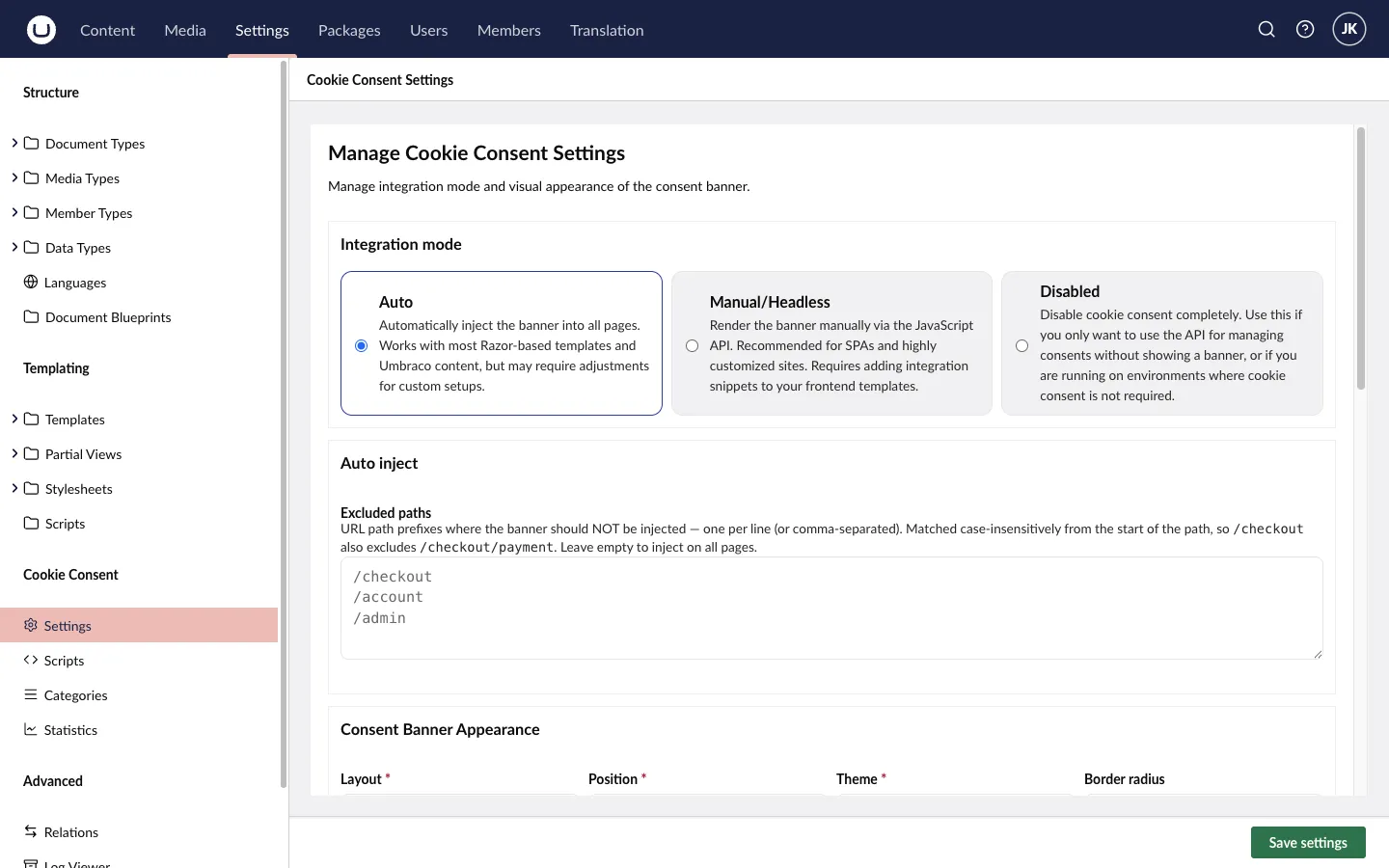
Section titled “Integration mode”The most important setting. It controls how the consent banner gets onto your pages.
| Mode | Use when |
|---|---|
| Auto (default) | Traditional Umbraco site. Middleware injects the consent script into every HTML response — zero template changes. |
| Manual/Headless | You control placement yourself: either render the banner via the JavaScript API in your own templates, or run a decoupled frontend (Next.js, Astro, …) against the REST API. |
| Disabled | Turns the package off completely without uninstalling. |
Auto-inject settings
Section titled “Auto-inject settings”Used in Auto mode:
- Location — where the init script is injected:
Head,BodyStartorBodyEnd(default). - Excluded paths — paths where the banner should not appear, e.g.
/checkout,/account/login,/api.
Appearance
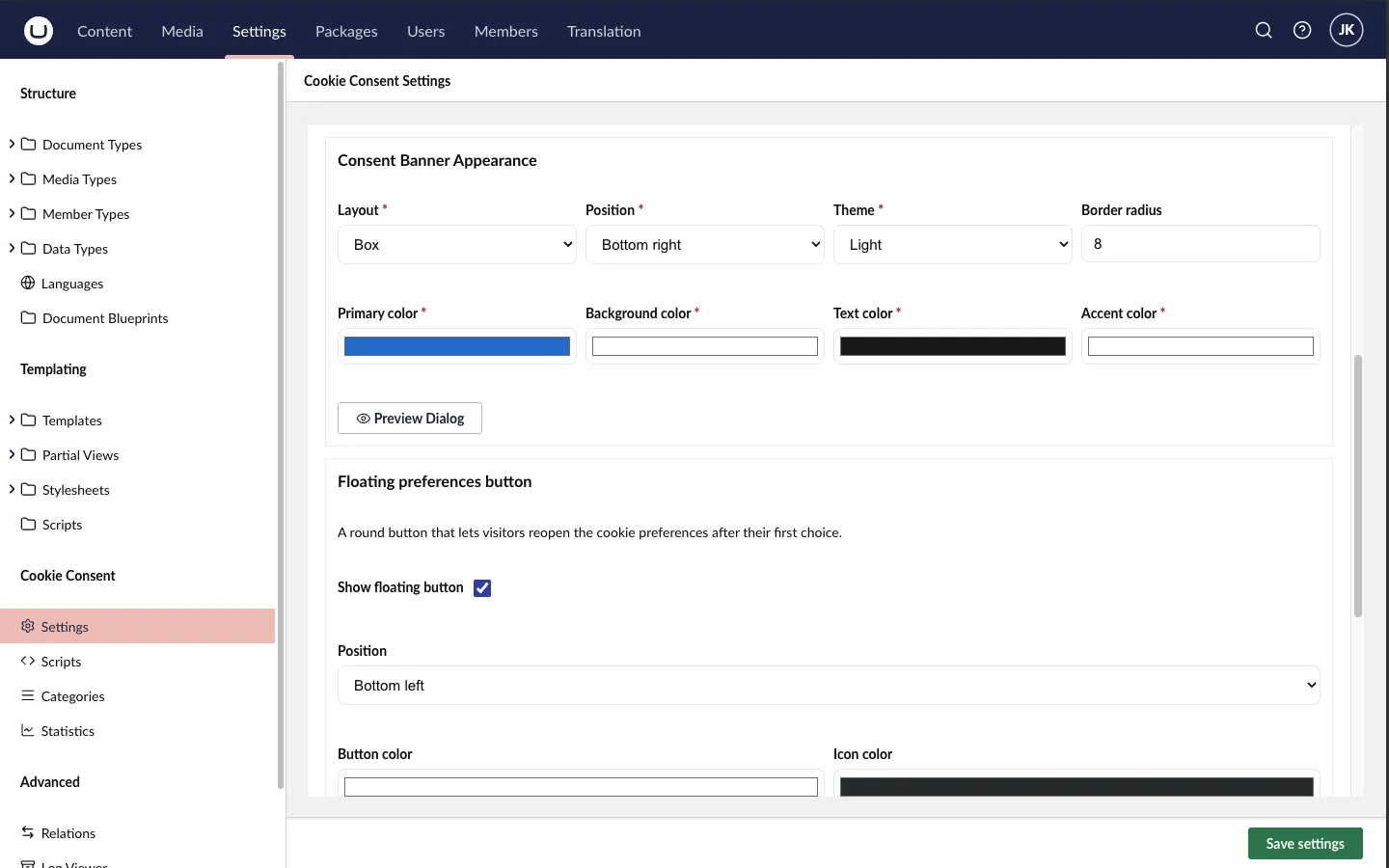
Section titled “Appearance”Under Settings → Appearance you control how the banner looks:
- Layout:
box(default),cloudorbar - Position:
bottom-right(default),bottom-center, and other placements - Colors: primary (default
#0078d4), background, text and accent - Border radius: default
8px
Use the Preview Dialog button to see the result while you edit.
Floating button
Section titled “Floating button”A small floating button lets visitors reopen their cookie preferences after the banner is dismissed — a GDPR requirement, since consent must be as easy to withdraw as to give.
- Enabled: on by default
- Position:
bottom-leftby default - Background and icon colors are configurable
If you disable it, link to the preferences modal yourself, e.g. from the footer, using window.FlowcourierConsent.showPreferences().
Statistics
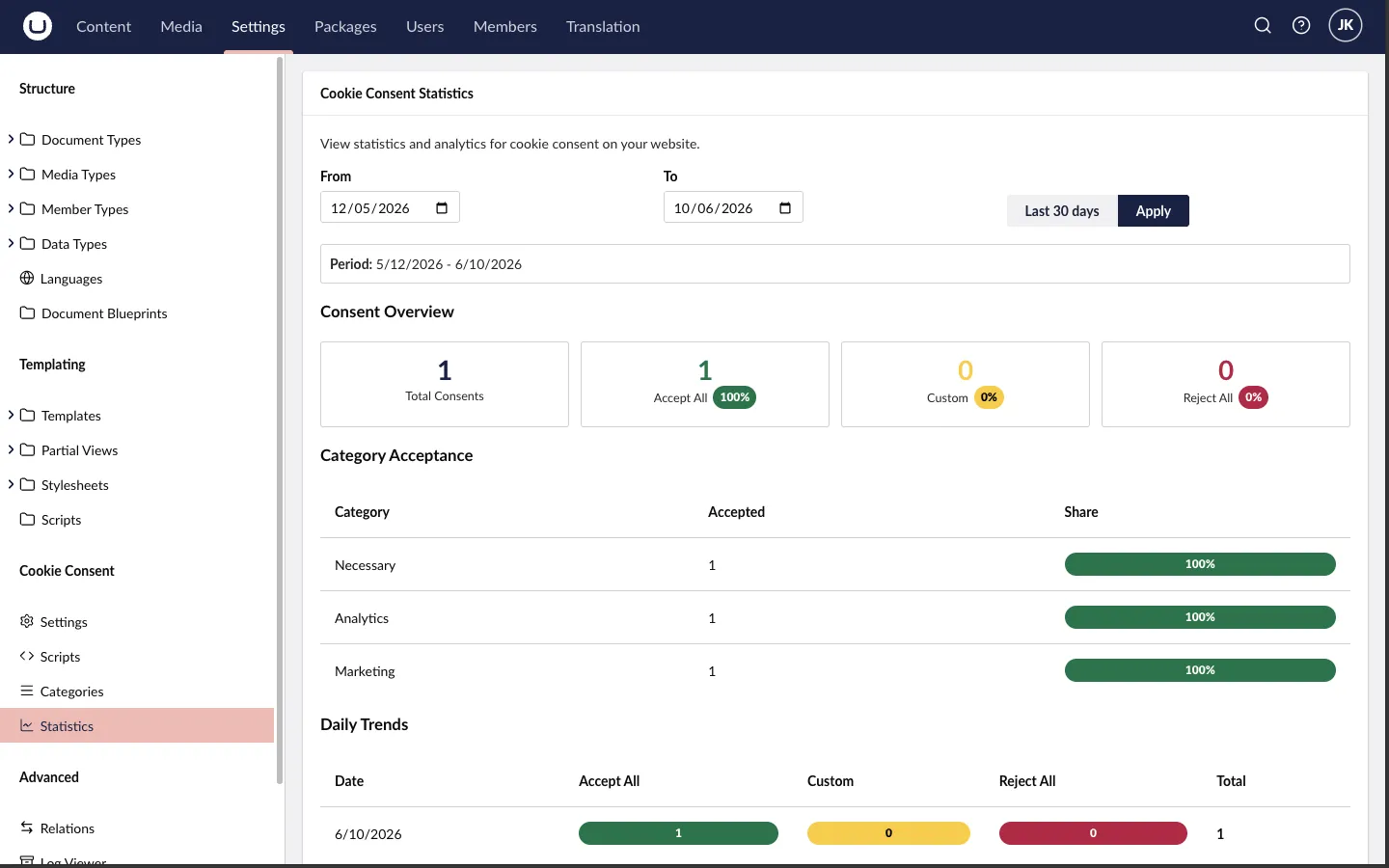
Section titled “Statistics”Consent decisions (accept all / reject all / custom selections) are logged anonymously so you can see consent rates in the Statistics dashboard.
- Enabled: on by default
- Retention: 90 days by default, after which records are cleaned up automatically
API settings
Section titled “API settings”The public REST API serves the banner configuration and receives consent statistics. Relevant mainly for Headless mode:
- CORS: enabled by default; restrict with Allowed origins when your frontend runs on a different domain
- API key: optional; off by default
Public endpoints are served under /fc-cookie-consent/api/ — config, languages, stats, stats/summary and ping.