

2. Create Service account at Google Console and Add API Access
Configure Access to Google Services
Section titled “Configure Access to Google Services”On this page, you’ll learn how to set up a dedicated service account with access to Google Analytics, Google Search Console and PageSpeed Insights data. Flowcourier uses this service account to securely retrieve and analyze your Google Analytics data.
1. Create a new project
Section titled “1. Create a new project”Go to the Google Cloud Console and create a new project, for example, “FlowcourierAnalytics” (or use an existing project).
2. APIs & Services
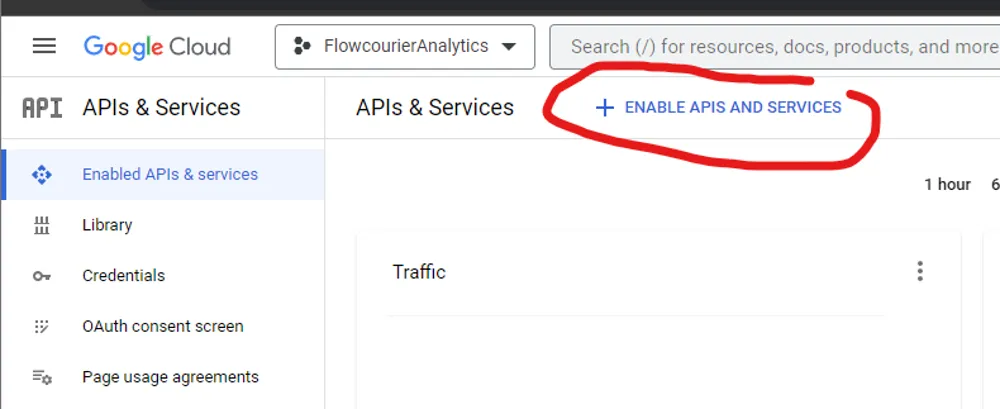
Section titled “2. APIs & Services”In Enabled APIs & services, click ENABLE APIS AND SERVICES.
3. Enable the three APIs
Section titled “3. Enable the three APIs”Search for “Google Analytics Data API”, select it, and click the ENABLE button. Repeat the same for the Google Search Console API and the Google PageSpeed Insights API.
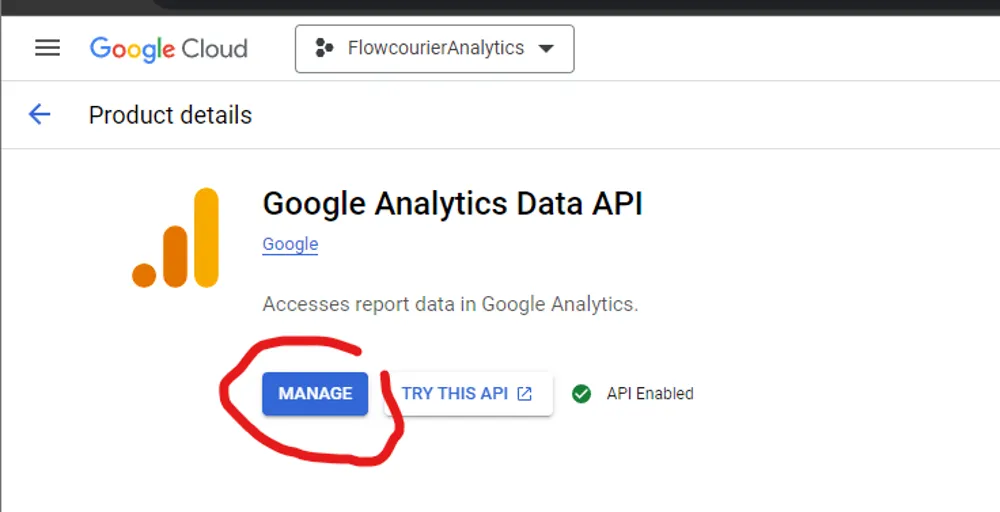
Remember to enable all three APIs:
Google Analytics Data APIGoogle Search Console APIGoogle PageSpeed Insights API4. Create credentials
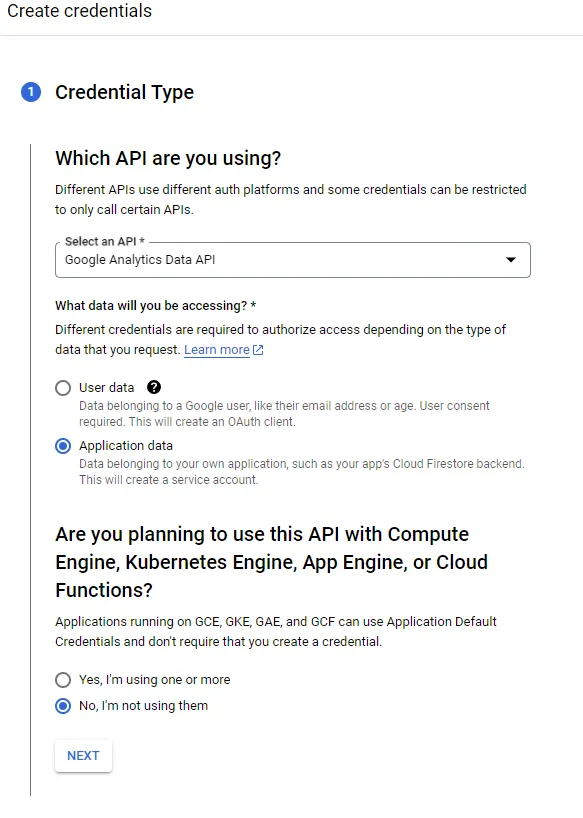
Section titled “4. Create credentials”In the Manage view of “Google Analytics Data API”, click the CREATE CREDENTIALS button.
- Choose Application data.
- To the question “Are you planning to use this API with Compute Engine…”, answer No.
- Click the NEXT button.
5. Service account details
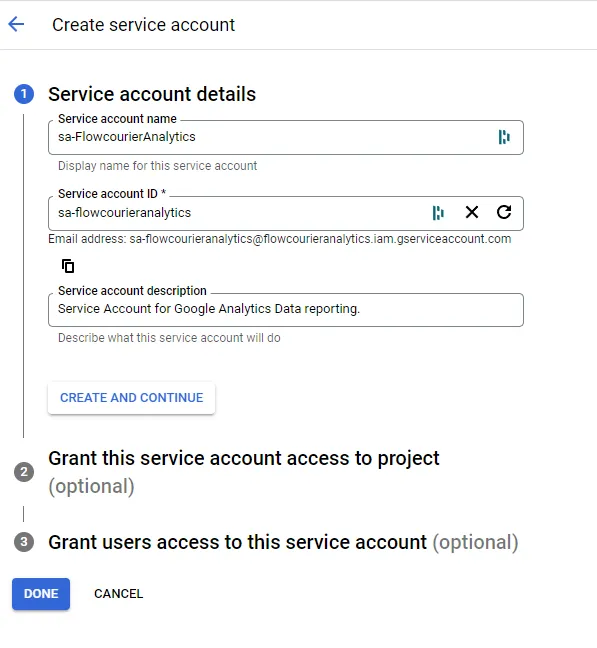
Section titled “5. Service account details”Give the service account a name, for example, “sa-FlowcourierAnalytics”, and press the CREATE button.
6. Copy the service account email
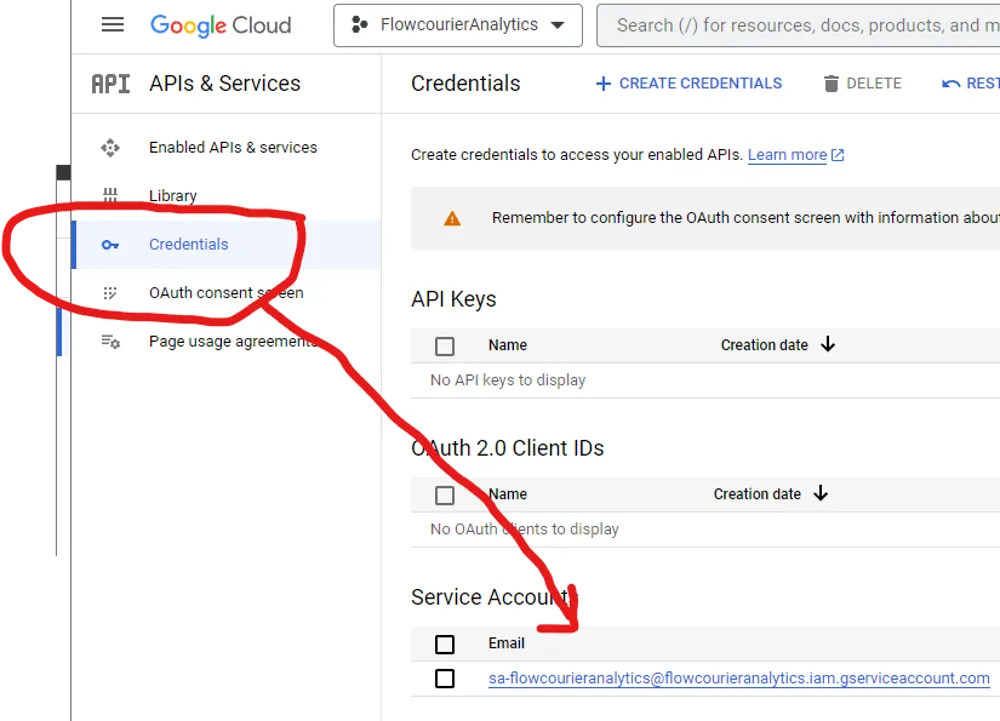
Section titled “6. Copy the service account email”In the Google Cloud Console, click Credentials in the left menu and copy the service account email address — you will need it in the next step.
You now have a Google Cloud project with a service account that can access the Google Analytics Data API. In the next step, you’ll give that service account access to your Google Analytics property.